
Coming from Lightroom
File → Import Lightroom Catalog… reads a Lightroom Classic catalog: the .lrcat file, next to
its Previews.lrdata folder. The catalog is only read, never changed. It brings over:
- Collections, also those in collection sets, which become Glimt collections named "Set - Collection". One that is there already gets only the images it lacks.
- Keywords with their hierarchy, into the keyword tree (Places → Norway → Oslo).
- Star ratings, into Glimt's stars, and into the XMP sidecars if Preferences says so.
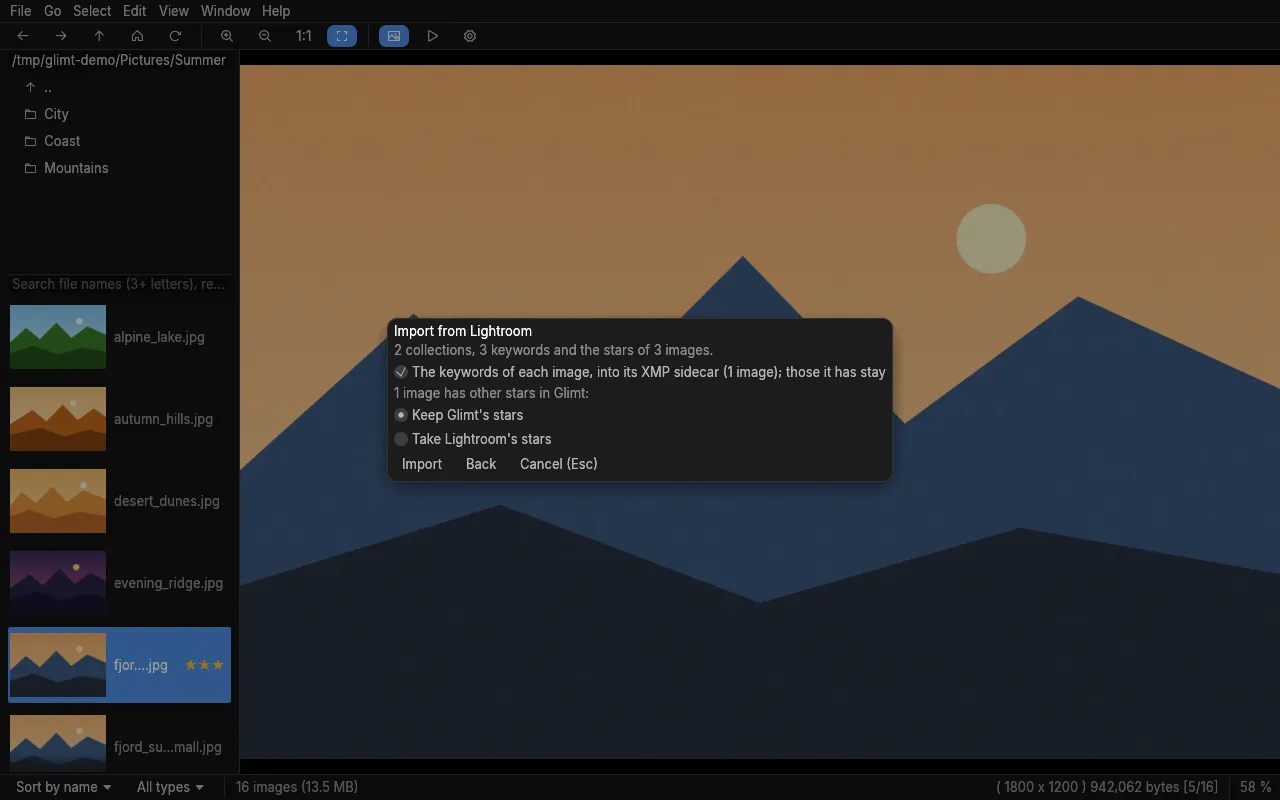
- The keywords of each image (Glimt 0.26.0 or newer), into its XMP sidecar with their place in the tree, beside the keywords it has. Lightroom keeps them only in its catalog unless it writes XMP; a box in the import, on by default, turns this off.
Step by step
Section titled “Step by step”- Close Lightroom: the import reads the catalog only when Lightroom is not using it.
- In Glimt, choose File → Import Lightroom Catalog… and pick the
.lrcatfile. - Lightroom keeps the full path of every folder as it was on its own computer, such as
D:/Photos/or/Volumes/Photos/. Glimt shows each top folder of the catalog: say where it is now, for example/media/disk/Photos/. A folder left empty is skipped. - Next shows what the import will do: the collections that are there already, and how many images have other stars in Glimt, and how many images get their keywords. Choose whose stars to keep, then Import.
The import needs the sqlite3 program (sudo apt install sqlite3, sudo dnf install sqlite).
What is not imported
Section titled “What is not imported”Smart collections, colour labels, flags and develop settings. The catalog itself is only read: Glimt never changes it, so Lightroom keeps working with it as before.
Lightroom CC, the cloud version, has no catalog file to import.
 Glimt
Glimt
A fast, memory-frugal image viewer for Linux, inspired by Geeqie. Version 0.38.4.
© 2026 Hans-Henry Jakobsen. Glimt is free and open source software under the MIT License.