
Getting started
Start Glimt on a folder or an image (glimt ~/Pictures, glimt photo.jpg), or from the
application menu, which opens your home folder (or the last one, with "Start in the last used
folder" in Preferences).
The whole manual is in the user guide, and the options for starting Glimt are under Command line.
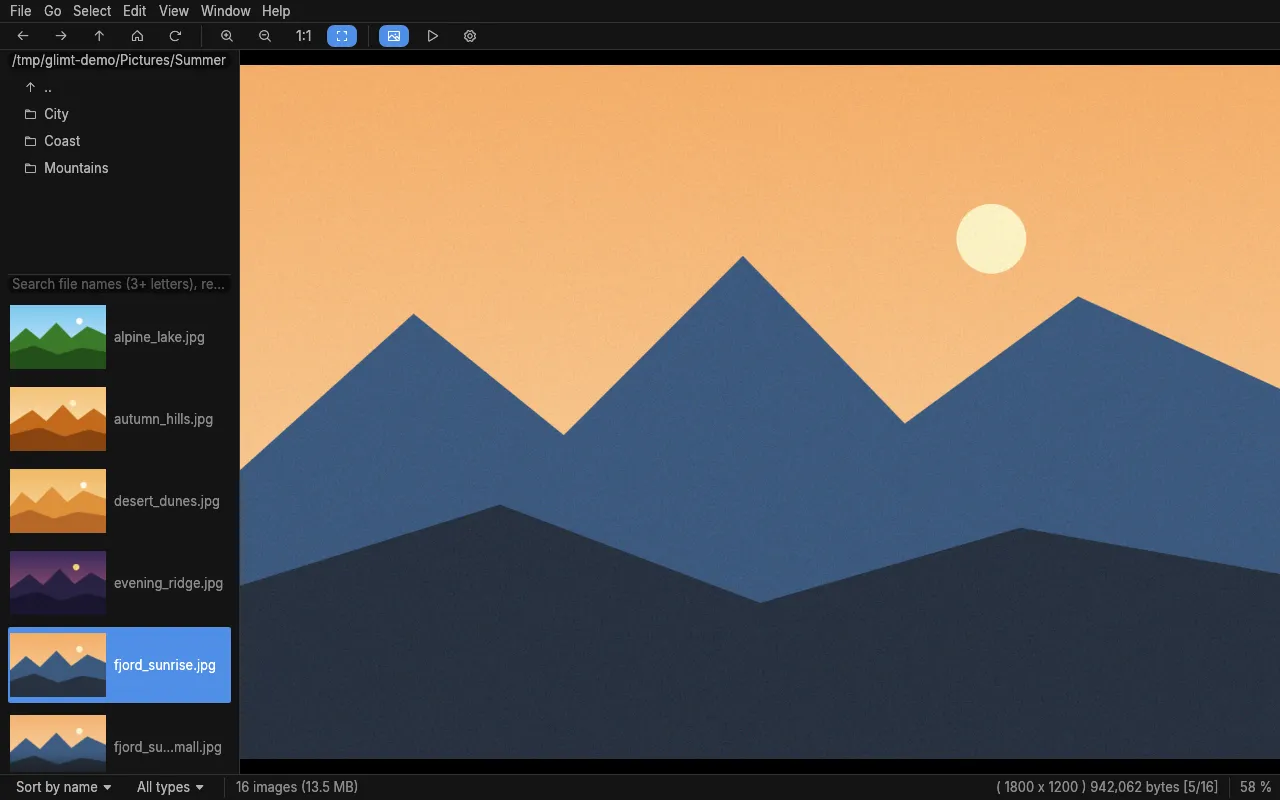
The keys used most
Section titled “The keys used most”F1 opens the help, with every key and a keyboard map.
| Key | Does |
|---|---|
| → ↓ Space, ← ↑ Backspace | Next and previous image; Home and End for the first and last |
| F (or F11), Esc | Full screen, and back |
| + and −, Z, X | Zoom in and out, 1:1, fit to the window |
| H, W | Fit the width, the height, for every image until X |
| ] and [ | Turn right and left |
| S | Slideshow, start and stop |
| T, Ctrl+K | Thumbnails in the file list, the EXIF panel |
| I | Image info over the image in full screen |
| Ctrl+J, D | Pan view by date, Find Duplicates |
| Ctrl+R, Ctrl+C, Ctrl+M | Rename (several selected: Rename Many), copy, move |
| Delete, Shift+Delete | To the trash, delete for good (both ask first) |
| Ctrl+O, F1 | Preferences, the help |
Searching
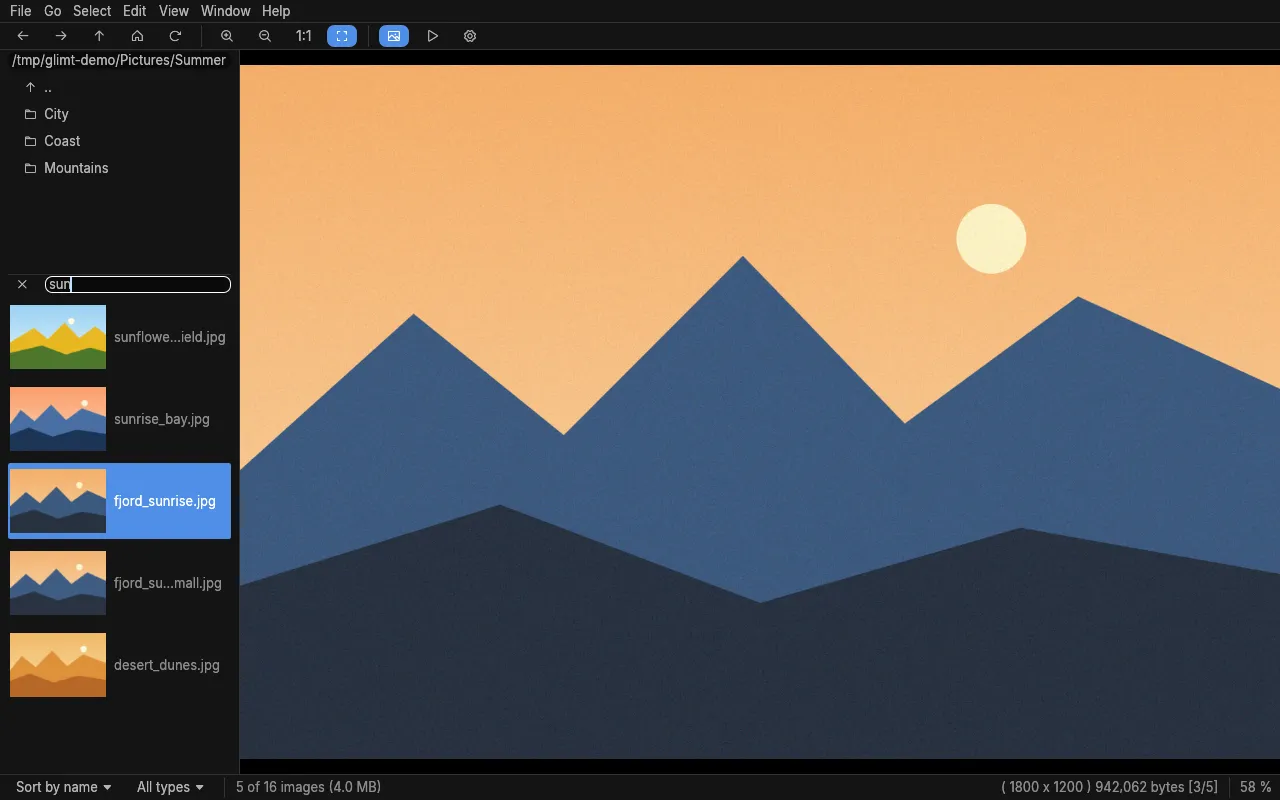
Section titled “Searching”Press / (or click the field above the file list) and type three or more letters: the list shows the names that match, best first, ignoring case and gaps. Ctrl+A selects every match, to copy, move, rename or print them together.
| Type | Finds |
|---|---|
sun |
Names with s, u, n in that order: sunflower, sunrise, also desert_dunes |
exif:canon 2024:05 |
Photos whose EXIF, keywords or comment have every word: a Canon, May 2024 |
exif:oslo |
Photos with Oslo in a keyword, the comment or an EXIF field |
re:^img_\d+\.jpe?g$ |
Names matching a regular expression, ignoring case |
exif:re:canon.*2024:0[5-7] |
A regular expression on the EXIF, keywords and comments |
mark:2, stars:3 |
Files with mark 2, or with three stars |
sunset exif:canon stars:3 |
Terms one after the other: all must match |
sunset -exif:iphone |
- before exif:, re:, mark: or stars:: leave those out |
exif:canon | exif:nikon |
| between terms: either |
sunset ( exif:canon | exif:nikon ) |
Parentheses group, as words of their own with spaces around them |
The words after a prefix belong to it, so a search of the names comes first. A search of one term ranks the names best first; a combined one keeps the list's order.
The first exif: search in a folder reads every file once, which takes a while in a large one;
later searches are at once. Preferences can make the field a regular expression always, with
Case beside it for upper and lower case. The sort menu at the bottom left sorts the list by
name, number, date, EXIF date, size or extension, and the Types menu beside it chooses whether it
shows images, RAW files and videos.
Keywords, stars and comments
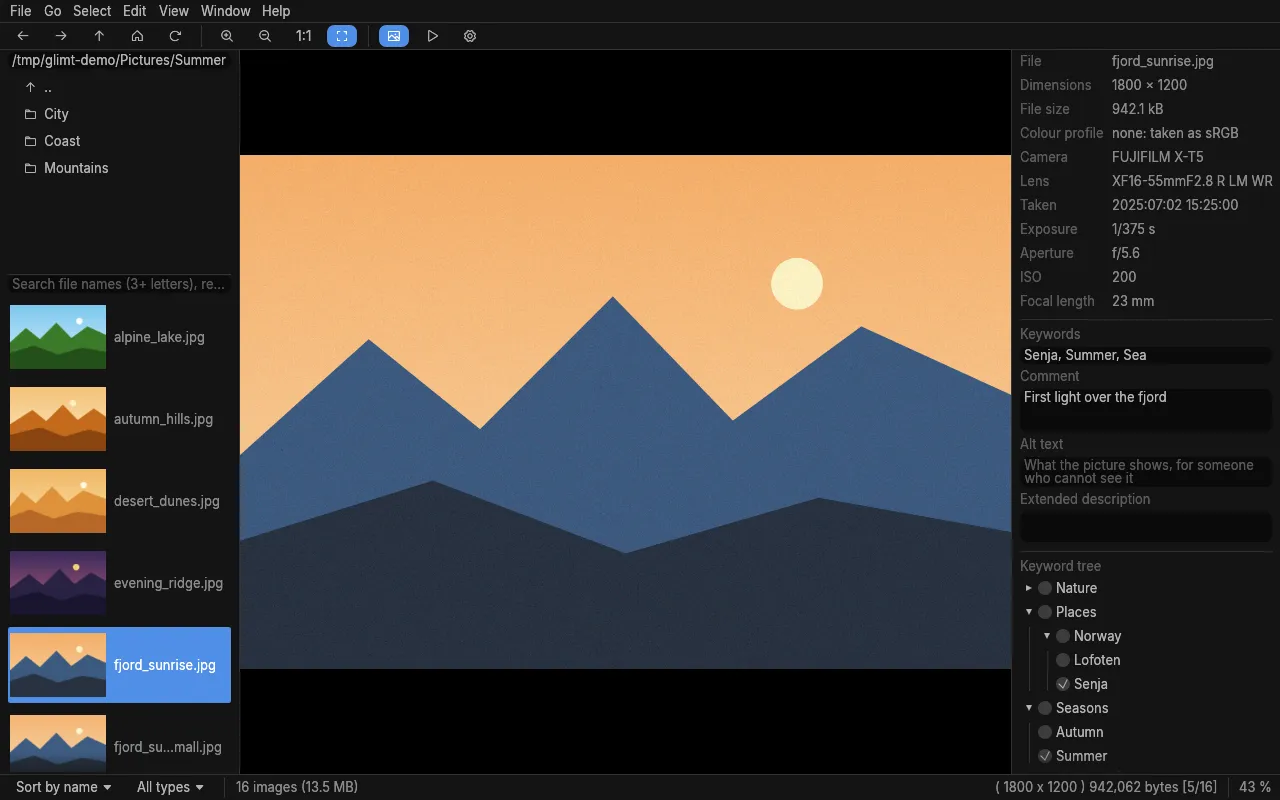
Section titled “Keywords, stars and comments”The EXIF panel (Ctrl+K) shows the keywords and comment of the image, and a keyword tree such as Places → Norway → Oslo, with a box for each. The keys 1 to 6 set marks, Alt+0 to Alt+5 the stars, and Ctrl+1 to Ctrl+6 select the images with a mark. Keywords and comments go to an XMP sidecar next to the image, which darktable, digiKam, Lightroom and Immich read, and the stars too when Preferences says so. Below the comment, Alt text and Extended description are IPTC's fields for someone who cannot see the picture: screen readers and web pages read them.
A slideshow in your own order
Section titled “A slideshow in your own order”A plain text file with one image on each line, relative to the file or absolute, plays in its
order (Glimt 0.25.0 or newer); # starts a comment, and .m3u playlists work too:
glimt --slideshow --fullscreen ~/show.txtGlimt never writes such a list. A collection (File → Collections) is the other way to keep a selection from many folders.
 Glimt
Glimt
A fast, memory-frugal image viewer for Linux, inspired by Geeqie. Version 0.38.4.
© 2026 Hans-Henry Jakobsen. Glimt is free and open source software under the MIT License.