
Screenshots
The pictures in the screenshots are generated for the purpose.
Browsing
Section titled “Browsing”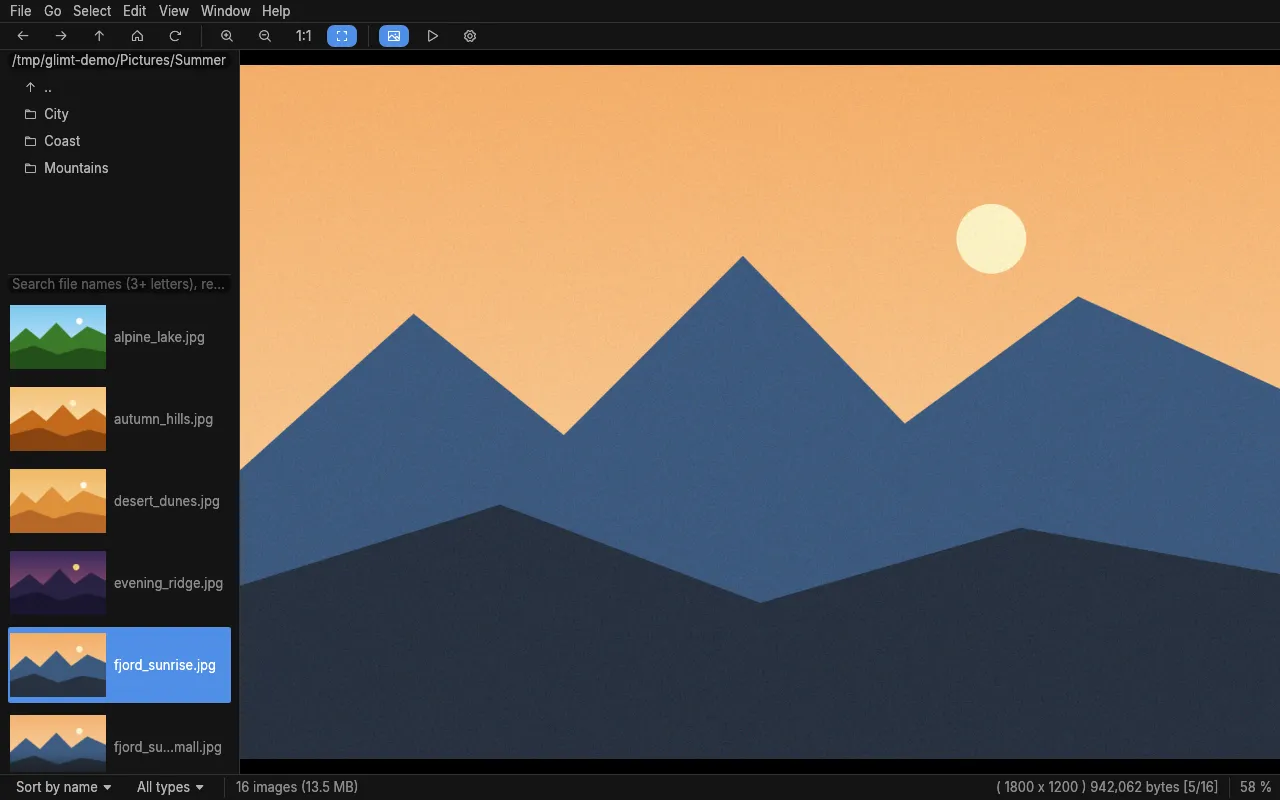 The file list with thumbnails, and the image at the size of the window.
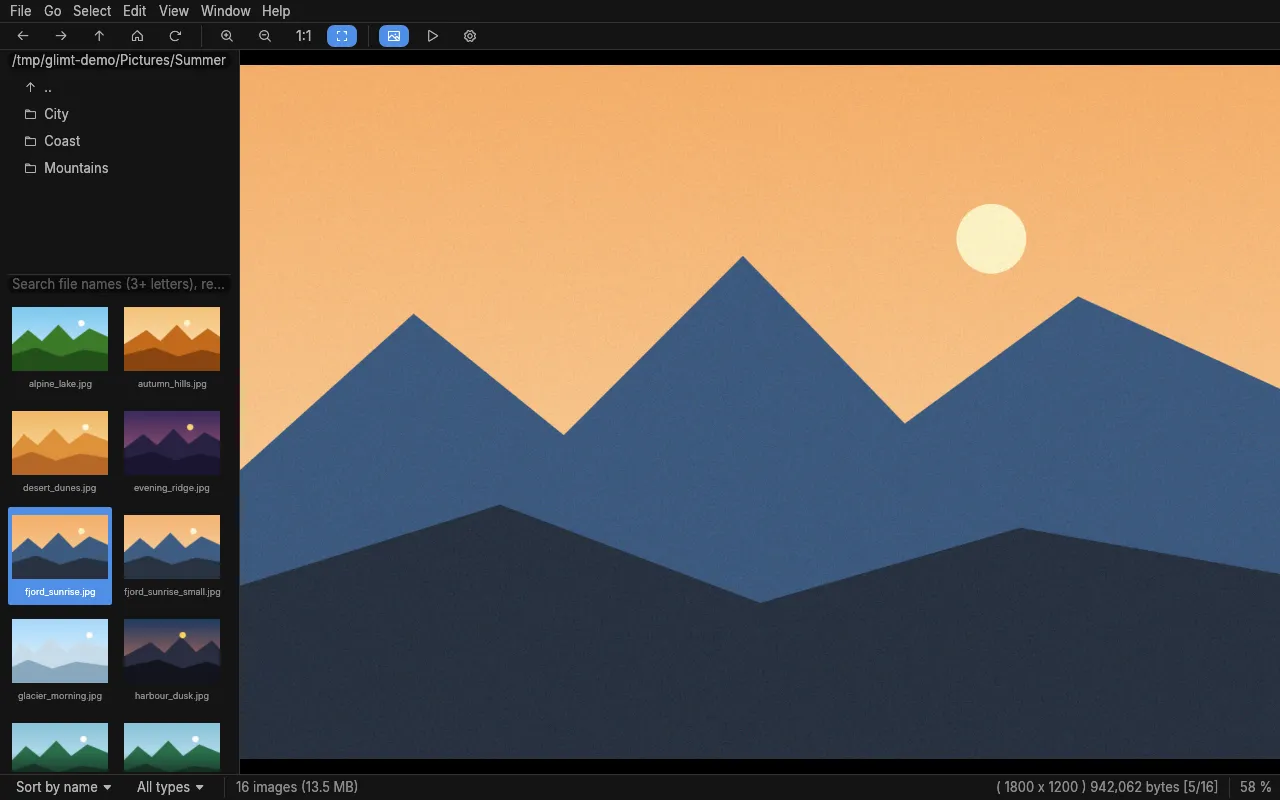 The file list as a grid of icons (Ctrl+I); stars show on the thumbnail.
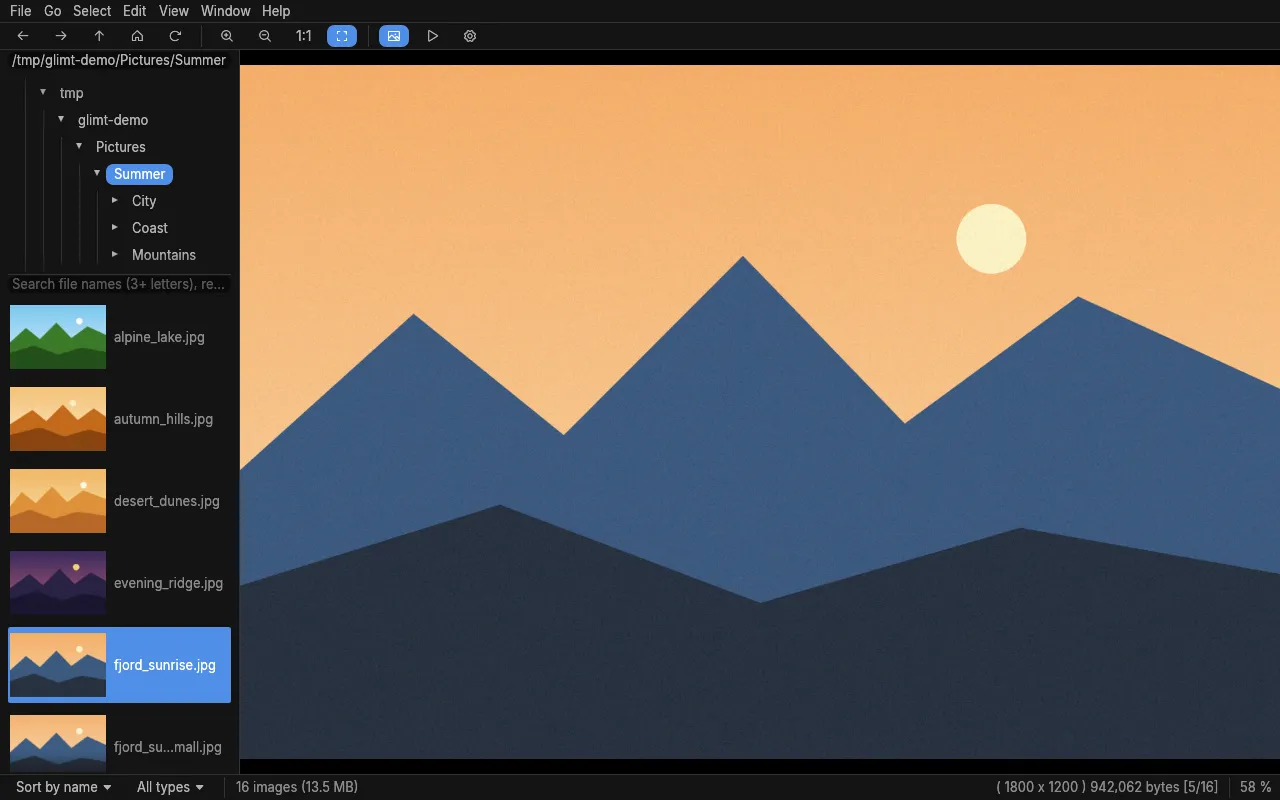 The folders as a tree (Ctrl+T).
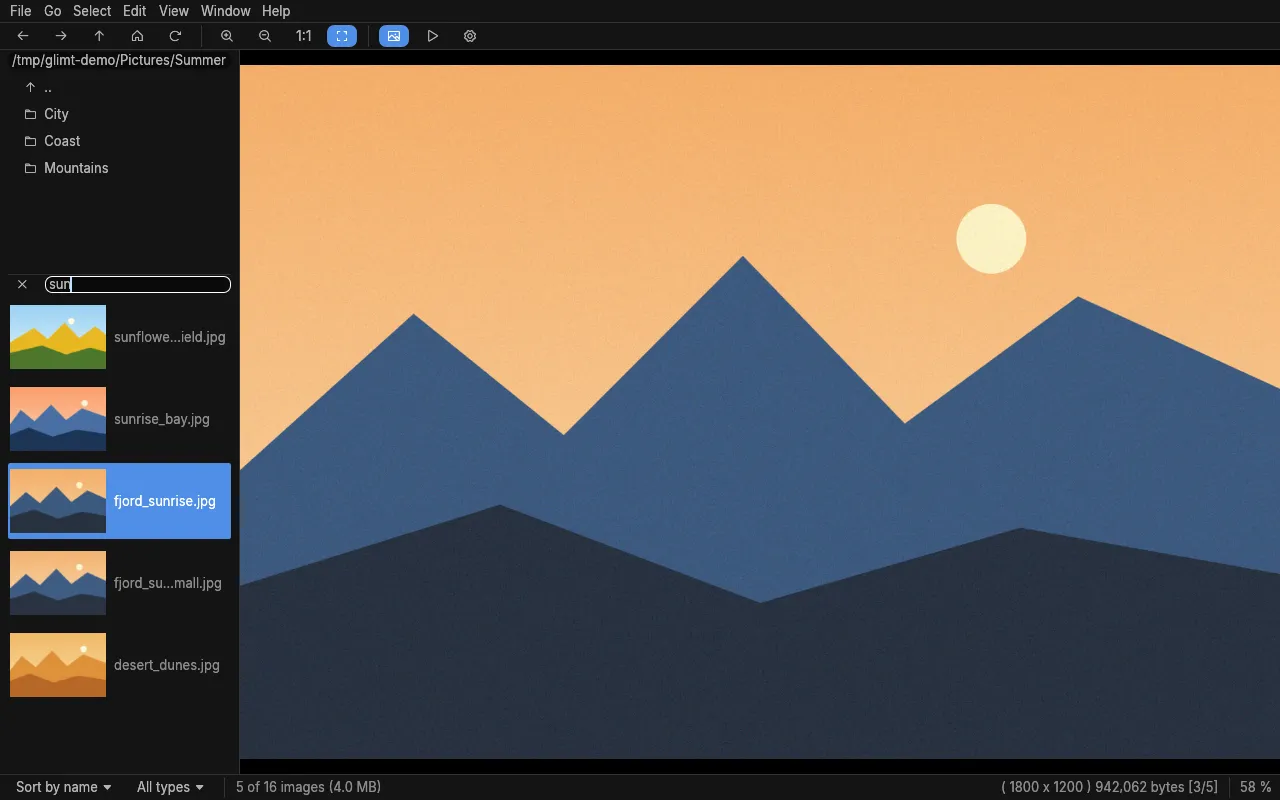 Fuzzy search: "sun" finds sunflower and sunrise, and also desert_dunes.
Looking closer
Section titled “Looking closer”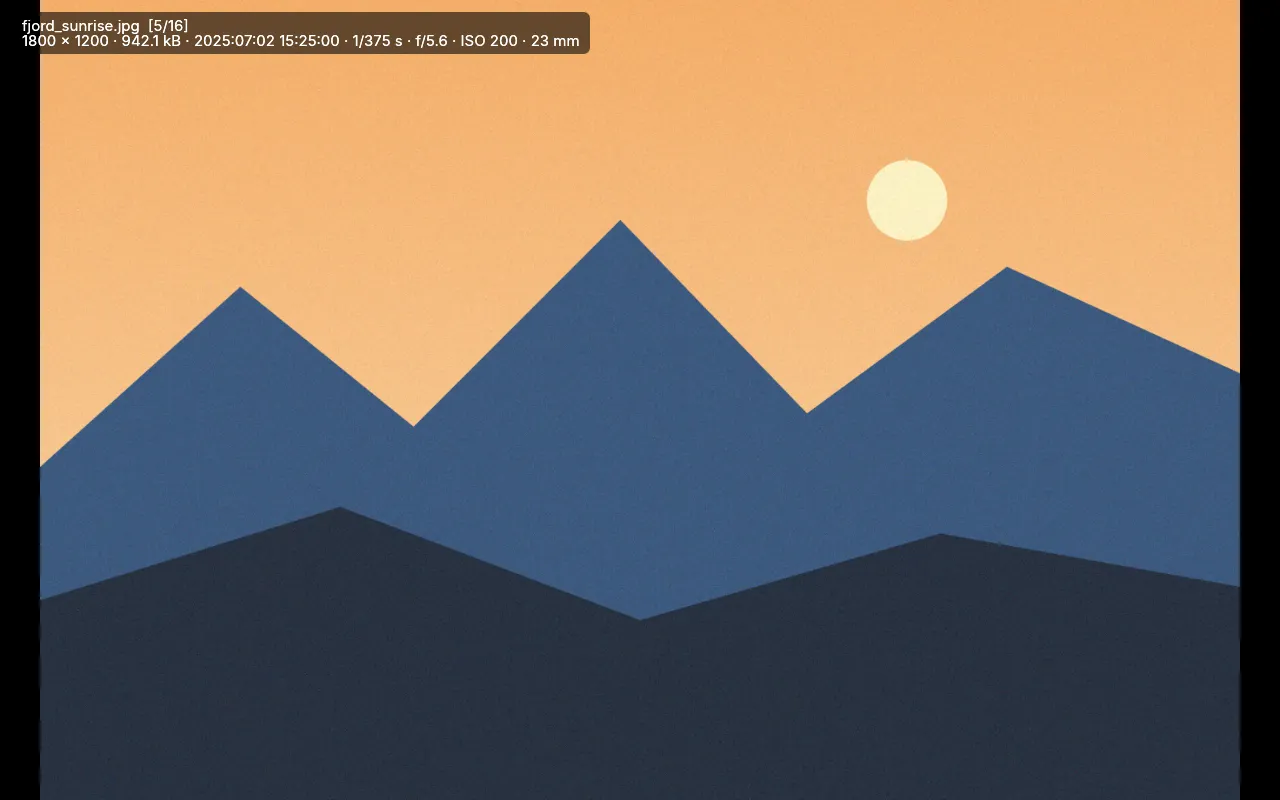 Full screen (F) with the image info over it (I), from a template of your own.
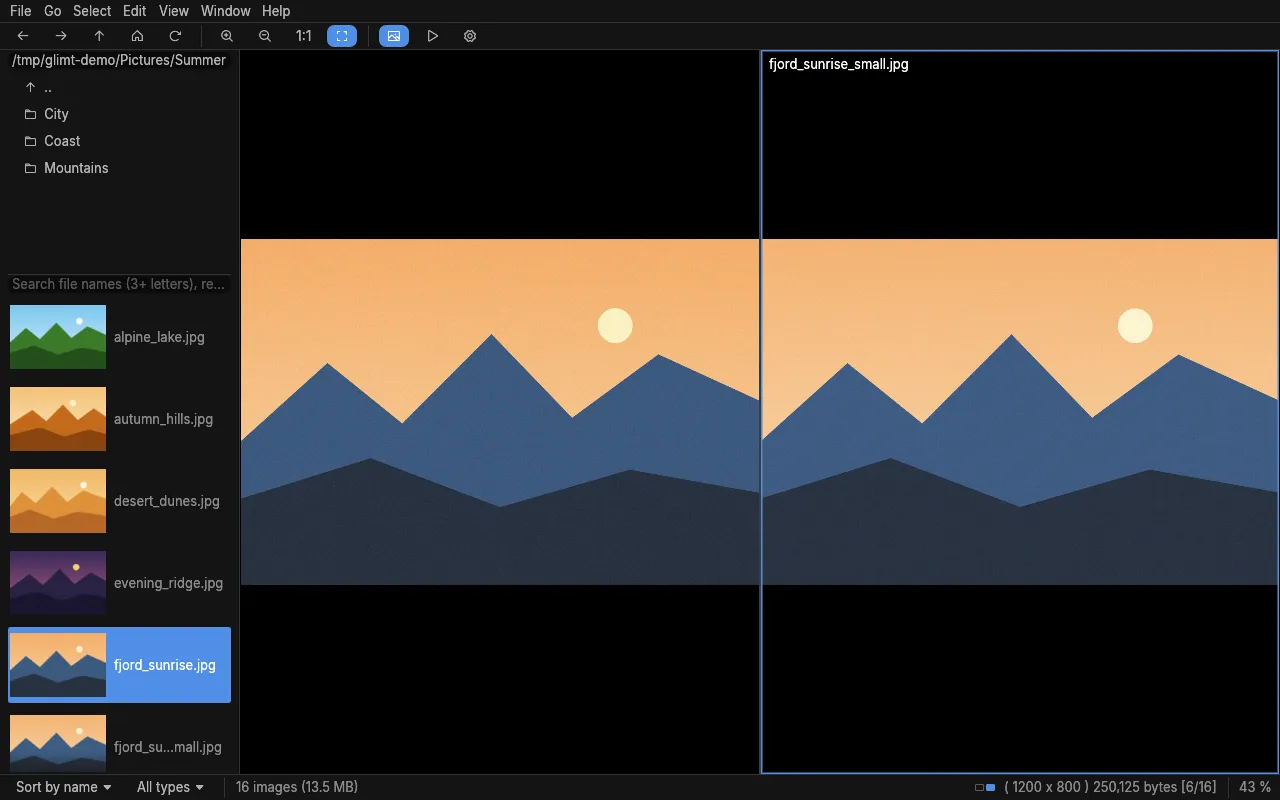 Compare (E): the next image beside this one, at the same zoom and position.
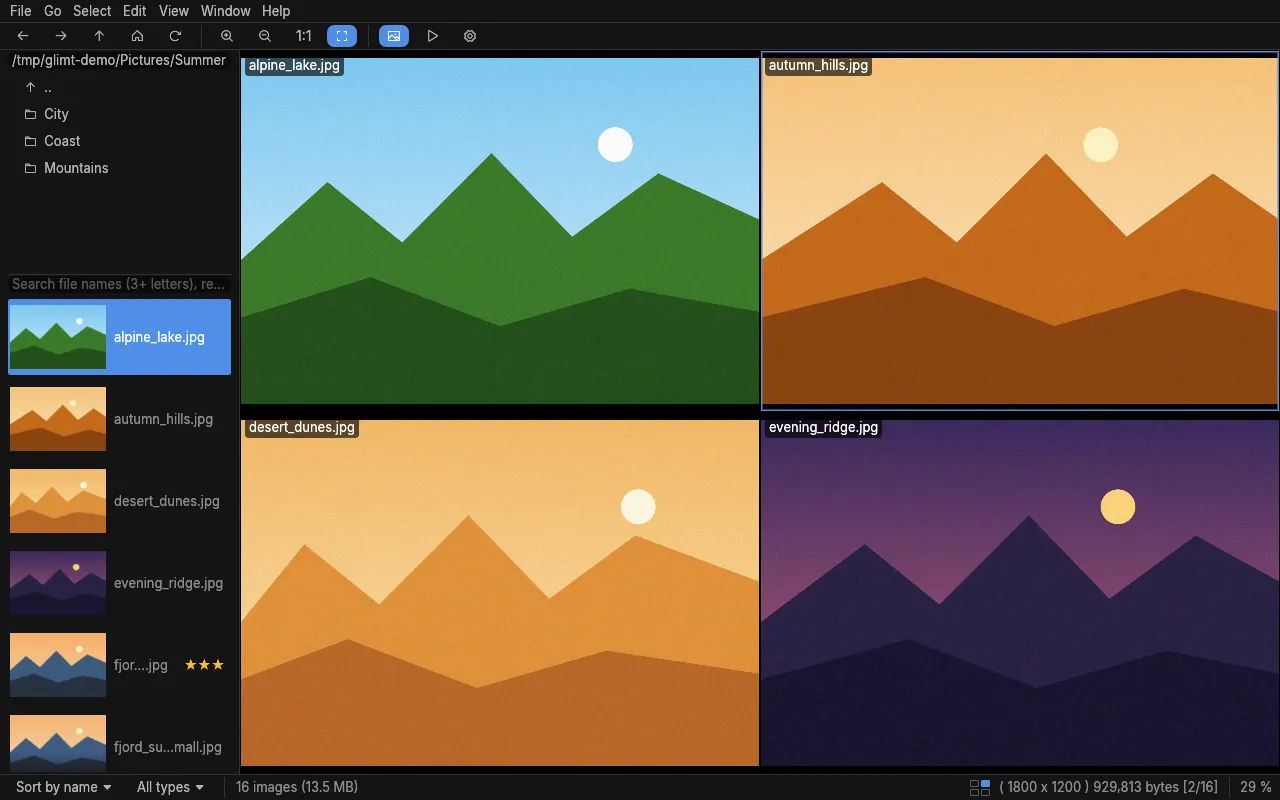 Layout 2×2 (View → Layout), with the file names shown.
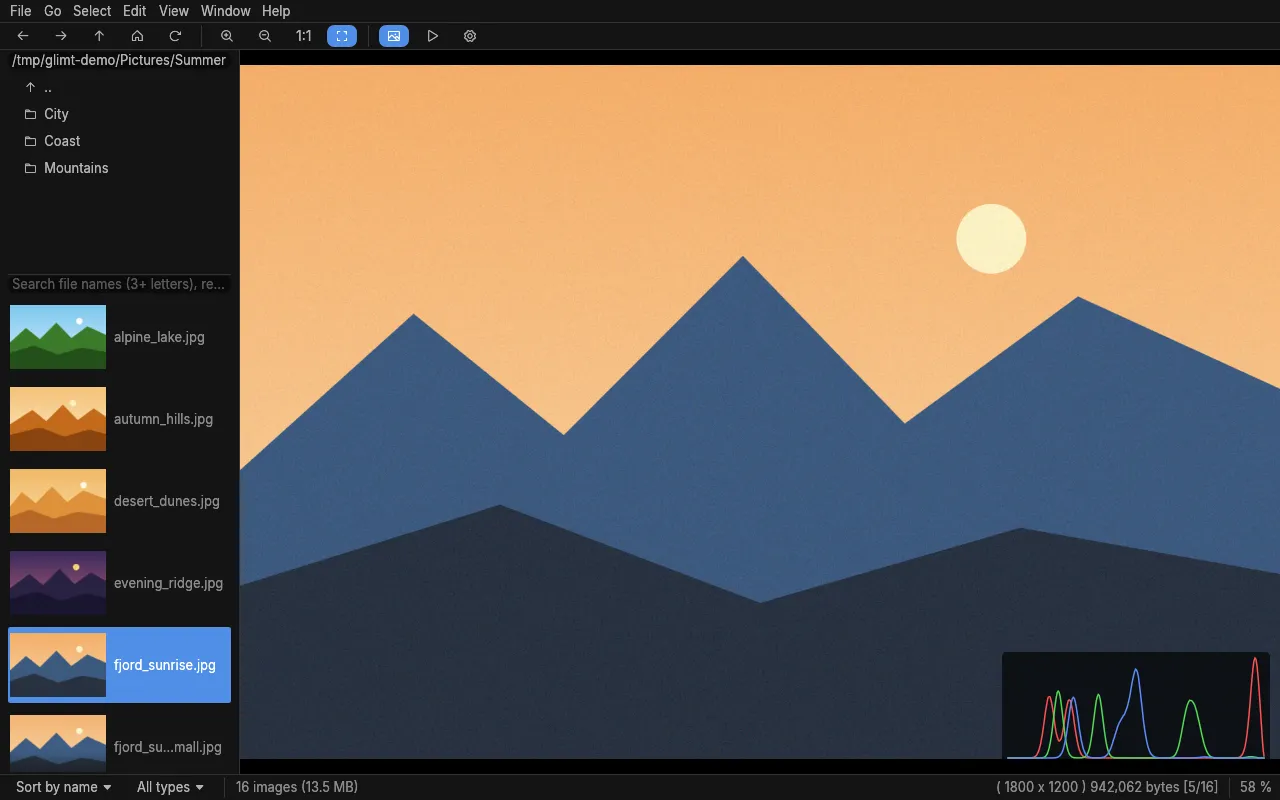 The histogram (K): RGB or brightness, and logarithmic with J.
Organising
Section titled “Organising”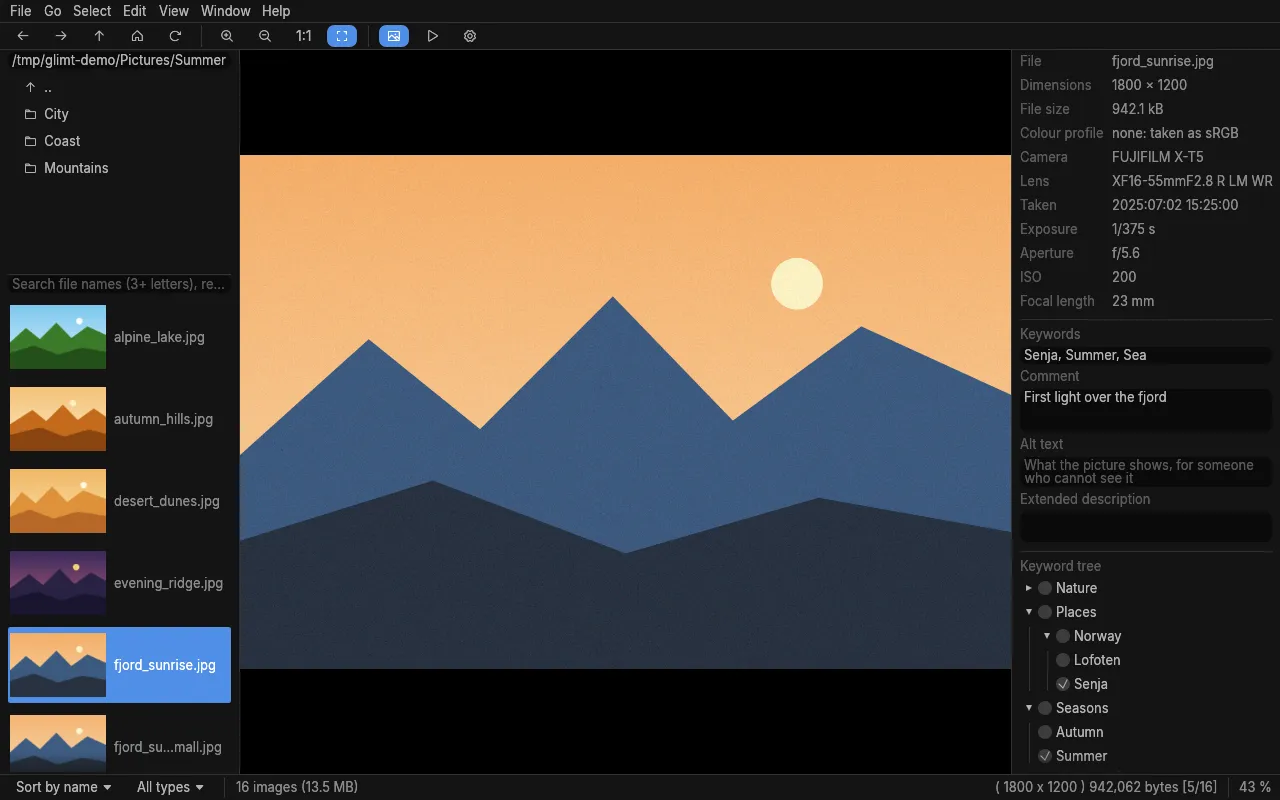 The EXIF panel (Ctrl+K): camera settings, keywords, a comment, and the keyword tree with a box
for each keyword.
The EXIF panel (Ctrl+K): camera settings, keywords, a comment, and the keyword tree with a box
for each keyword.
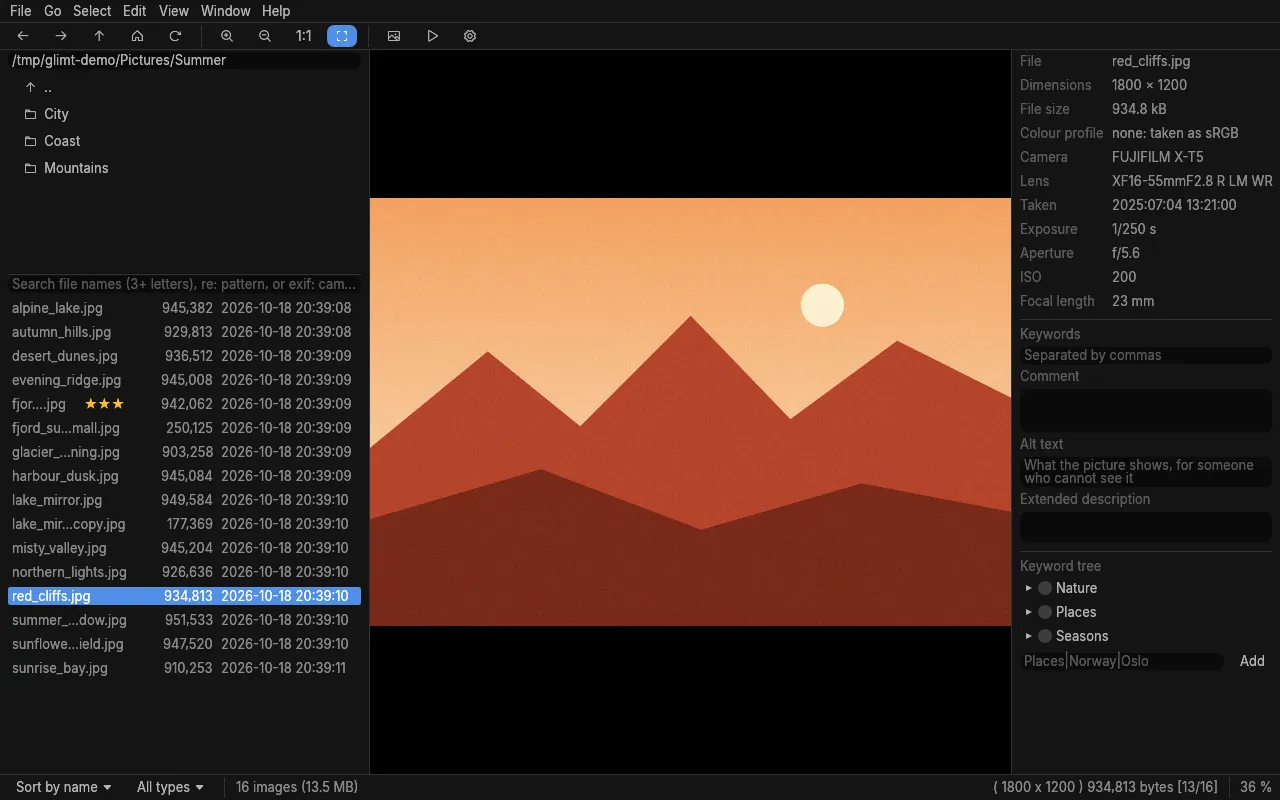 File size and date columns in the list.
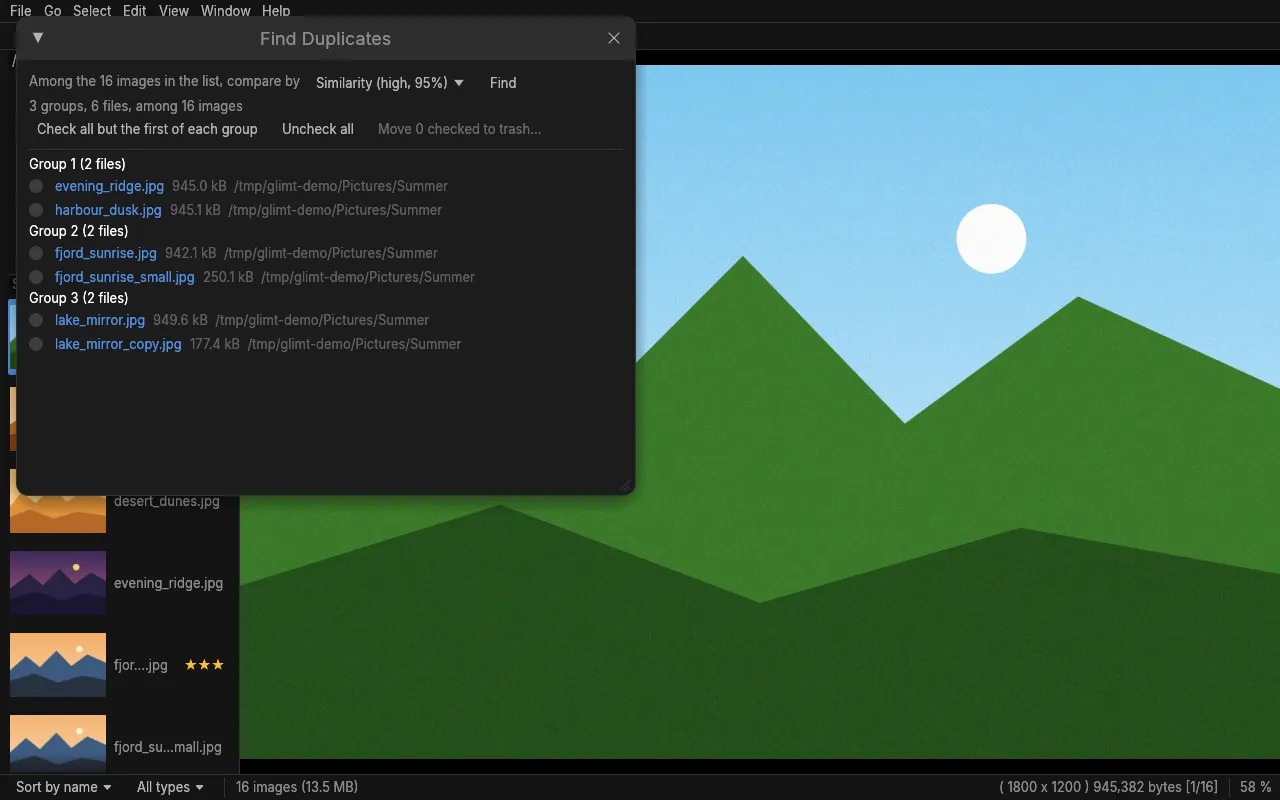 Find Duplicates (D) by similarity, also in subfolders.
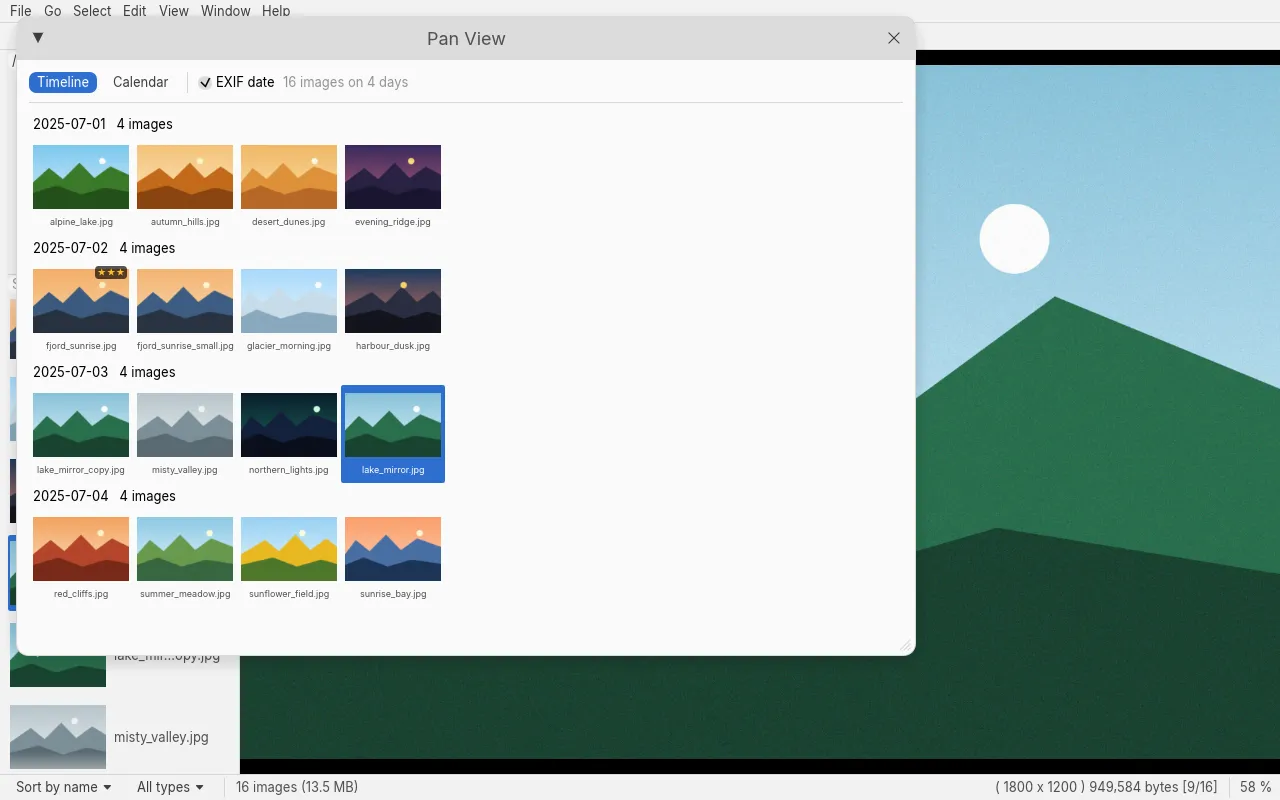 The Pan view (Ctrl+J), every image by day, here in the Light theme.
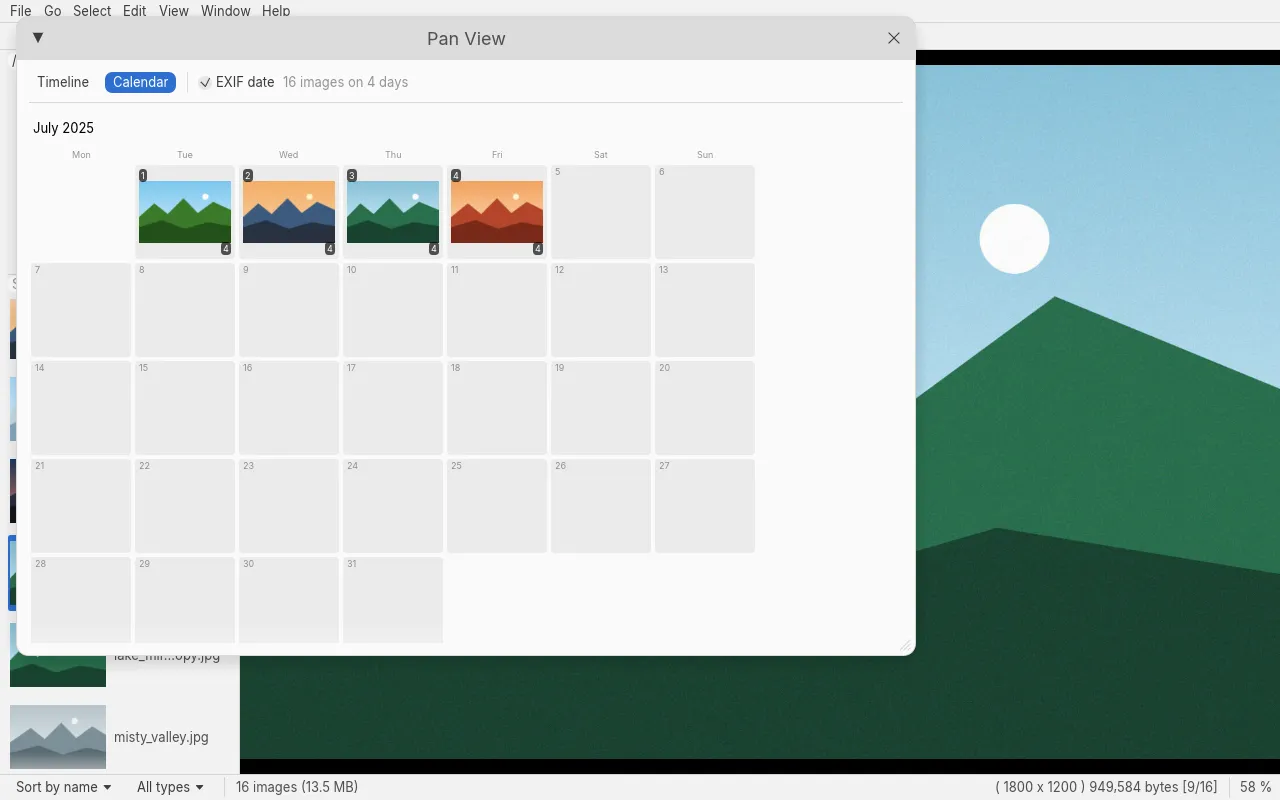 The Pan view's calendar: each day with its first image and how many; a click shows that day.
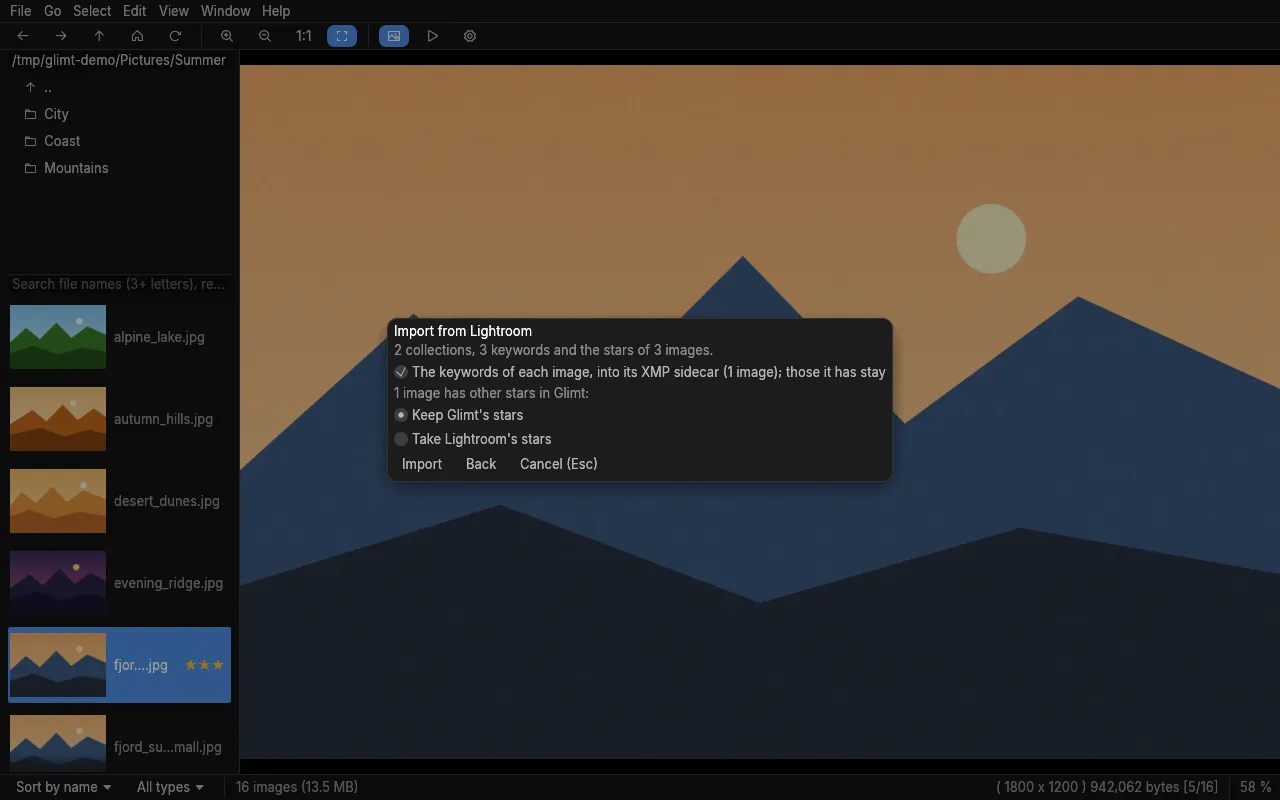 Importing a Lightroom Classic catalog: what it will do, and whose stars to keep.
Printing and the look
Section titled “Printing and the look”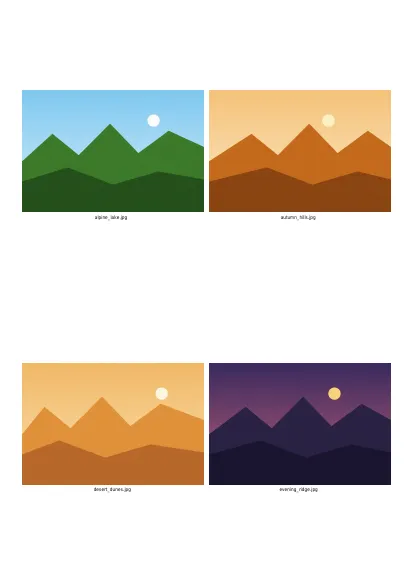 A contact sheet: four images on each page, with their names, printed or saved as a PDF.
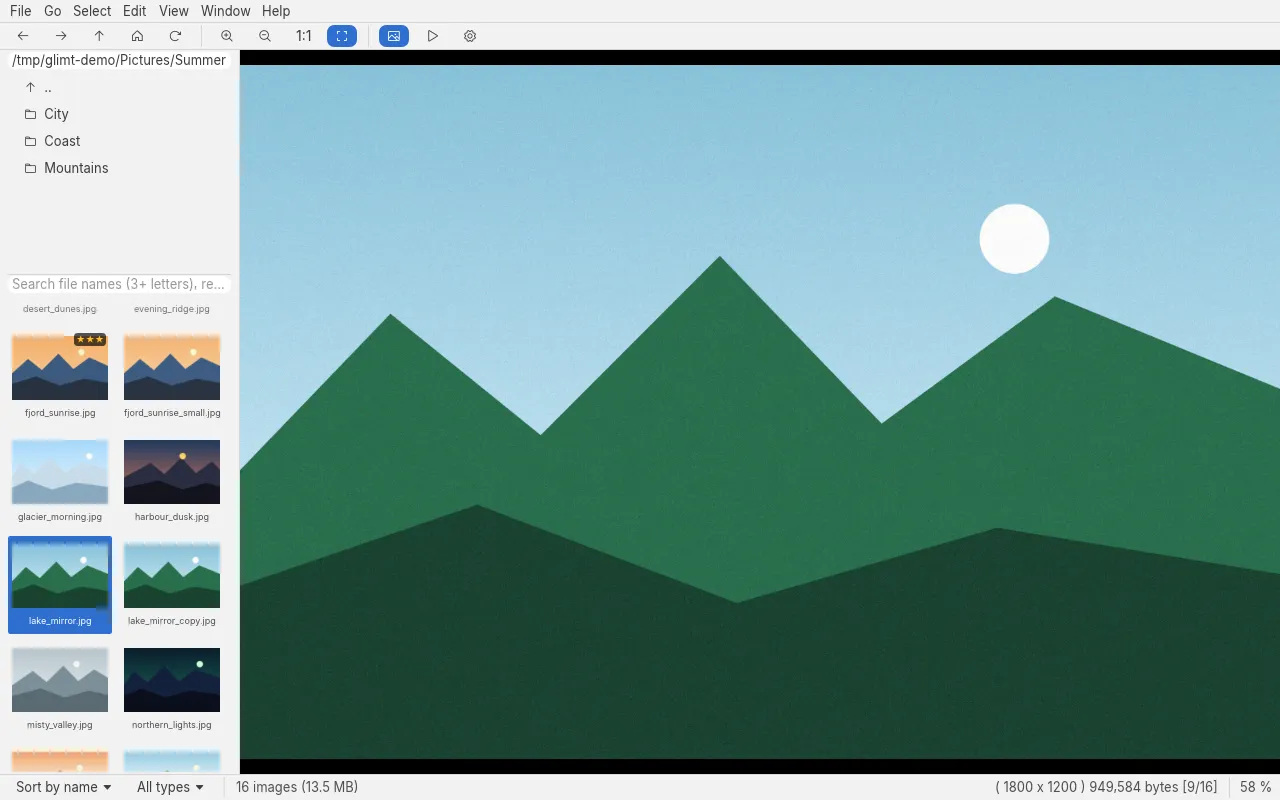 The Light theme; Glimt also follows the desktop's dark style and accent colour.
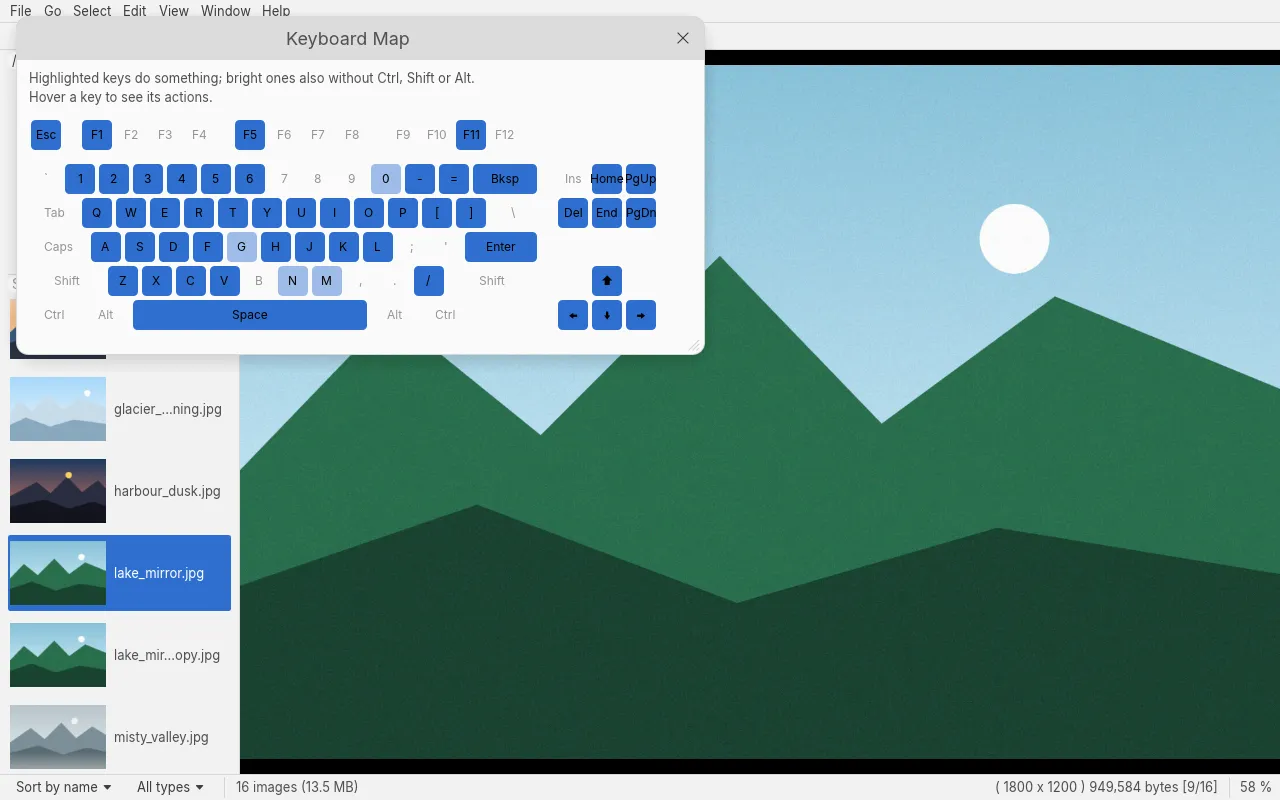 Help → Keyboard Map: every key, as on the keyboard.
 Glimt
Glimt
A fast, memory-frugal image viewer for Linux, inspired by Geeqie. Version 0.38.4.
© 2026 Hans-Henry Jakobsen. Glimt is free and open source software under the MIT License.