
User guide
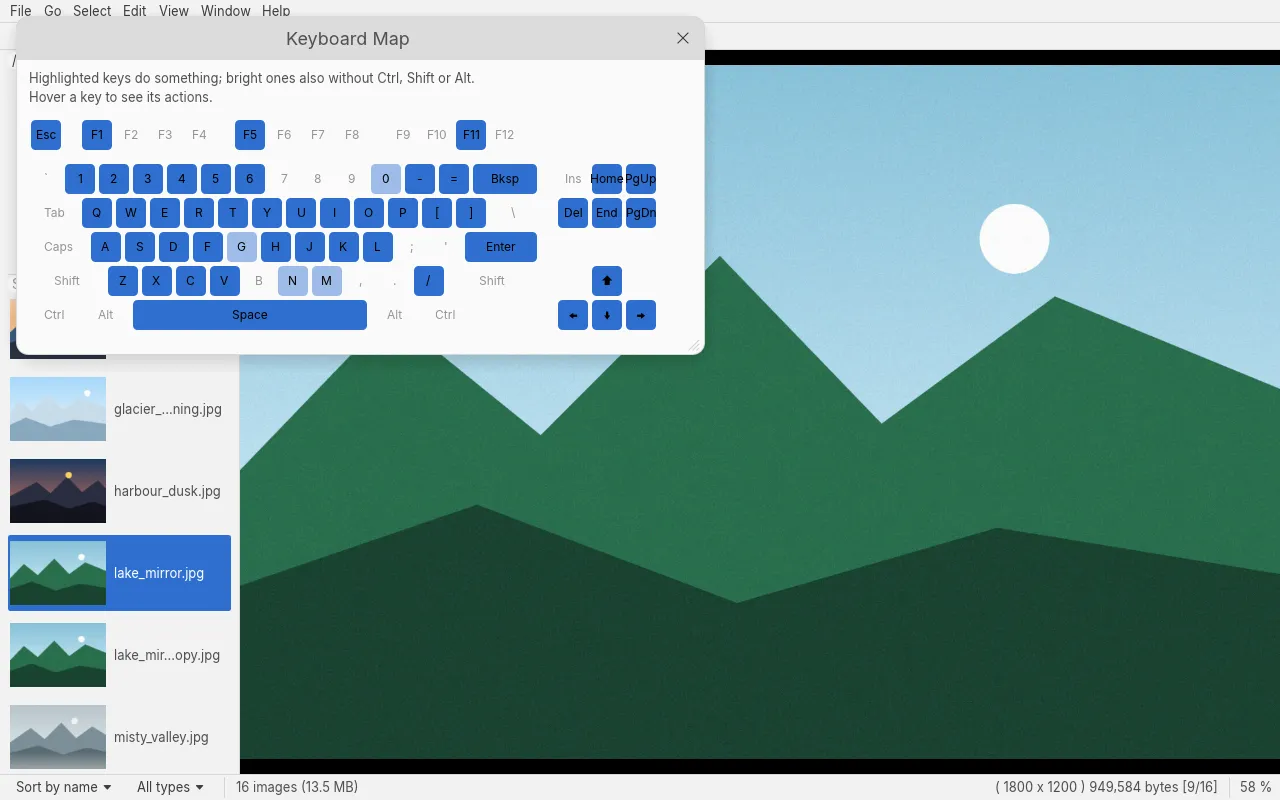
This is the manual from Glimt 0.38.4, the same as Help → Manual (F1) in the program. Every key is in Help → Keyboard Shortcuts and Help → Keyboard Map; the options for starting Glimt are under Command line.
Opening images
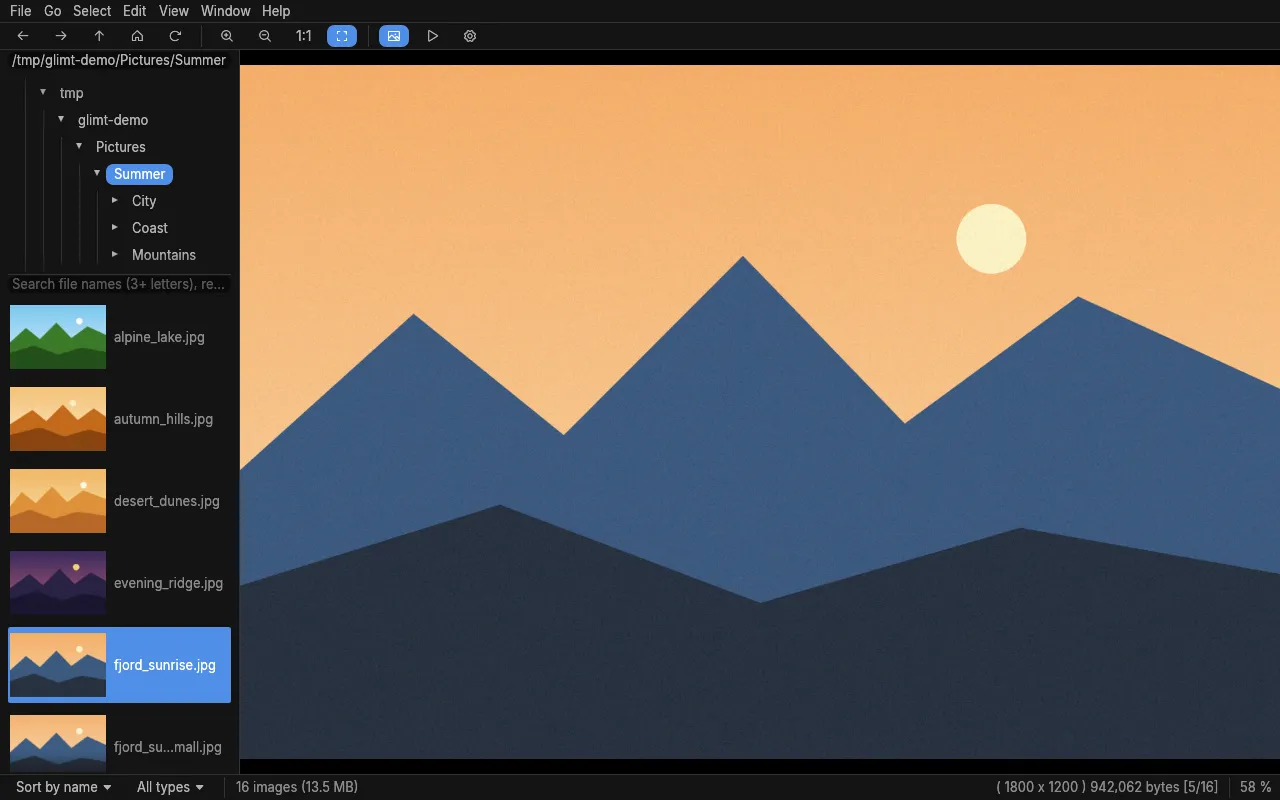
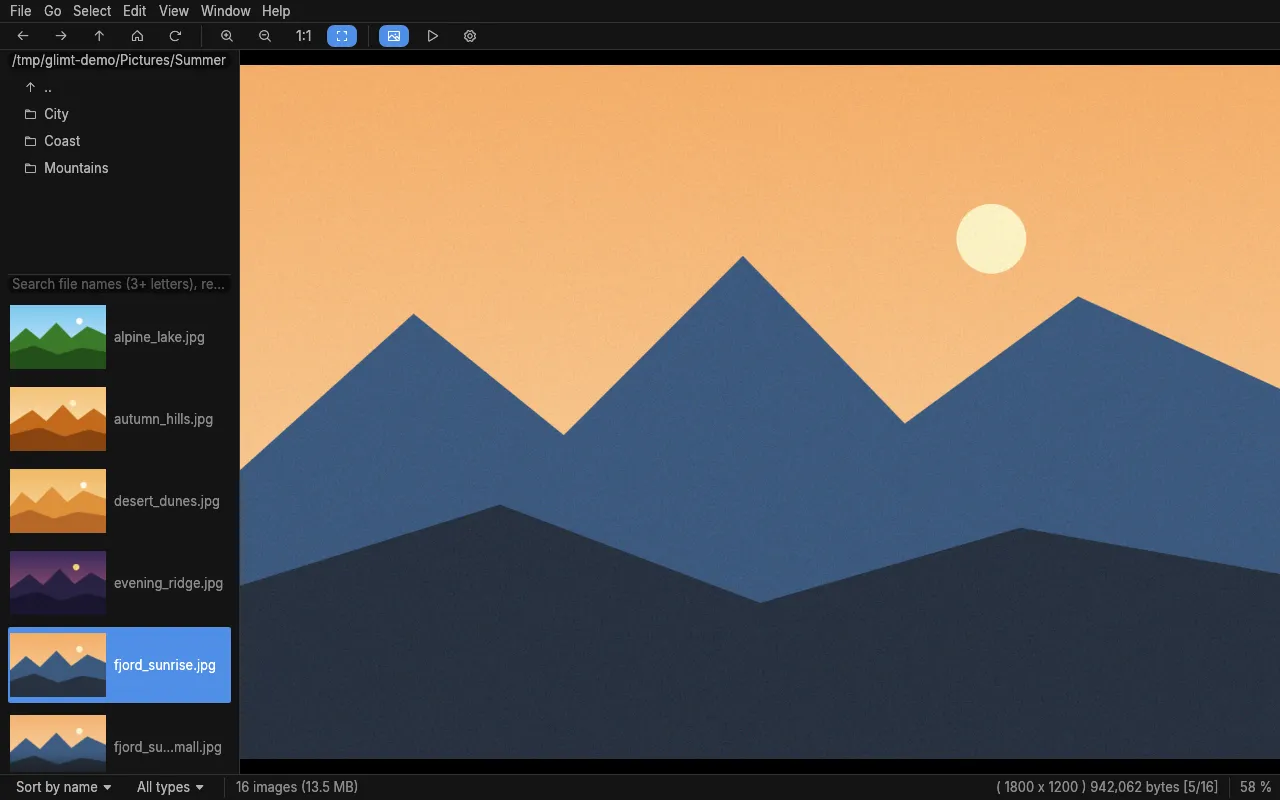
Section titled “Opening images”Start Glimt with a folder or an image (glimt ~/Pictures), drop one on the window, use File → Open, type a path in the folder field above the folder list and press Enter, or click a folder in the list. ⬆ .. goes to the parent folder. Network shares work too: type smb://server/share (or sftp://…) and Glimt mounts it with gio, asking for user, domain and password if the share needs them (a password saved in the keyring from Files is used without asking). Several folders show as one list: glimt ~/Holiday ~/Family, File → Open Several Folders…, or Show Together with These Images in a folder's right-click menu; a slideshow then goes through all of them, and random order mixes them. The toolbar's arrows (Go → Back and Forward) go to the folders shown before, Up to the parent and Home to the home folder. F5 (Go → Refresh) reads the folder again; with Refresh the folder when files change (Preferences, on by default) Glimt does so itself, looking once a second. With Start in the last used folder, Glimt opens that one when it is given none. Ctrl+N (File → New Window) starts another Glimt in the same folder; Ctrl+W and Ctrl+Q close it. Starting Glimt a certain way, and controlling it from scripts, is under Command line at the end.
Browsing
Section titled “Browsing”Space, Page Down and → show the next image; Backspace, Page Up and ← the previous; Home and End the first and last. The images on each side are decoded in advance, so browsing is instant. Click a name in the file list to show it. In a TIFF with several pages, Ctrl+Page Down and Ctrl+Page Up go to the next and previous page; in an animation (GIF, WebP, APNG) they stop it at the next or previous frame, and A plays on. For such a file, File → Save This Frame… saves the frame or page shown as a PNG, and Export Frames… every one of them, at full size, in a new folder.
X fits the image to the window, Z shows it 1:1, + and - zoom. H fits the width and W the height, and View → Zoom → Fill the View fills it (cut at the sides): these stay for the next images until X. The mouse wheel zooms towards the pointer; with Mouse wheel zooms off in Preferences it browses, and Ctrl+wheel zooms. Preferences also say whether Zoom to Fit enlarges images smaller than the window (on by default), whether the zoom and position are kept when changing image, and the colour behind the image. A zoomed image larger than the window can be dragged or moved with the arrow keys. ] and [ rotate the view, Shift+R turns it upside down, Shift+M mirrors and Shift+F flips it (Edit → Orientation); the next image is shown as it is. Alt+X turns Auto rotate using EXIF off and on, to see an image as it is stored. Edit → Orientation → Save Orientation to File stores the rotation in a JPEG as its EXIF orientation, without touching the pixels; a setting does it on every change of image. PNG and WebP are turned and saved again with their EXIF data: PNG and lossless WebP without loss, a lossy WebP as lossy again (through ffmpeg, at the quality set in Preferences).
Slideshow
Section titled “Slideshow”S starts and stops, P pauses, R switches random order on and off, Ctrl+= and Ctrl+- change the delay. Browsing during a slideshow gives the new image the full delay. With "Include the images in subfolders" in Preferences it shows those too; the list goes back to the folder when the slideshow stops. Each image fades into the next, in every pane of a layout; Preferences sets the fade to Off, Short (the default) or Long, and CPU use Power saving turns it off. Browsing by hand shows the image at once.
Selecting and file operations
Section titled “Selecting and file operations”In the grid of icons (Ctrl+I), drag a rectangle to select every image it touches, added to the selection with Ctrl or Shift held (in a collection, start it between the images, as dragging an image moves it). Ctrl+click toggles a file, Shift+click or Shift with the arrow keys, Page Up/Down, Home and End selects a range, Ctrl+A selects all (the matches while searching), Ctrl+Shift+A none, and Ctrl+Shift+I inverts the selection. Copy, Move, Rename and Delete act on the selected files, otherwise on the shown image; right-click a file for a menu with them. Delete moves files to the trash and Shift+Delete deletes them for good; both ask first, as set under Delete behaviour in Preferences, which can also turn the Delete key off or use no trash at all. While files are copied, moved, deleted or given keywords, the status bar counts them (Copying 120 of 3,000…), and Stop ends it after the file at hand (to the trash: after the 100 at hand); one that took long says when it is done. A copy is written under a hidden name and gets its own when whole, and closing Glimt waits for these to end (close again to stop them). Rename with several files selected asks for a pattern: * is the old name and # a number (### gives 001); existing files are never overwritten. If a crash or a power cut stops it halfway, the next start offers to put the old names back or to finish. File → Open With (also in the right-click menu) opens them in another application, such as GIMP, and Open With Default App in the desktop's own. Ctrl+Shift+C copies the image itself to the clipboard, to paste into other programs; Select → Copy Files to Clipboard copies the files, to paste in a file manager, and Copy Path to Clipboard their paths, quoted for a terminal or unquoted. Right-click a folder, in the list or the tree, to rename it or move it and all in it to the trash; File → New Folder (Ctrl+F) makes one.
Finding and sorting
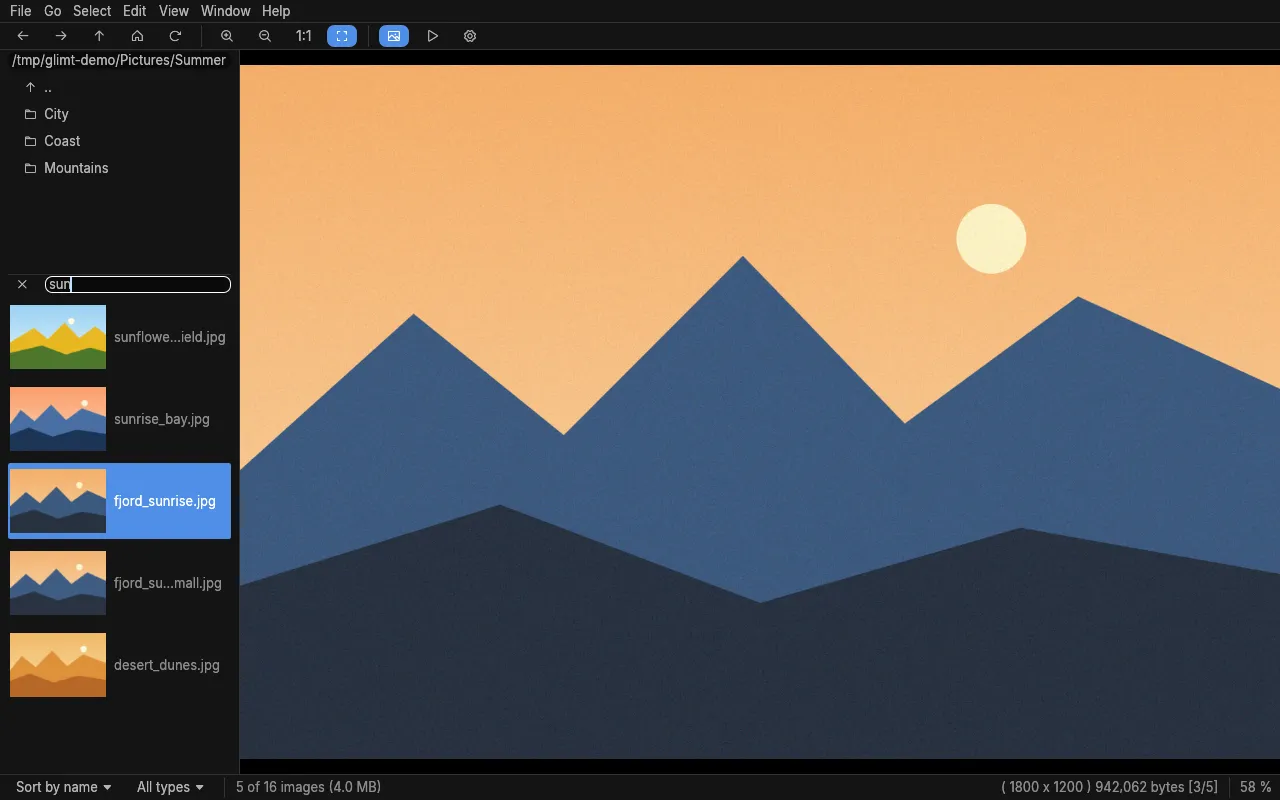
Section titled “Finding and sorting”Type three or more letters in the search field above the file list (/ puts the cursor there, and shows the field if it was hidden): the list shows the matching names, best first, ignoring case and gaps (like fzf). Start with exif: to search the EXIF, keywords and comments instead, for example exif:canon 2024:05 for photos from a Canon camera taken in May 2024; every word must match. Start with re: for a regular expression instead, ignoring case: re:^img_\d+\.jpe?g$, or exif:re:canon.*2024:0[5-7] for the EXIF. A setting in Preferences makes the field a regular expression always, from the first letter and in list order; Case beside the field then tells upper and lower case apart. The first EXIF search in a folder reads all files once, which takes a while in large folders. With the marks feature, 1–6 toggle a mark, Ctrl+1–6 select the files with it and Alt+0–5 give stars; mark:2 or stars:3 in the search field shows those files; a setting also writes the stars to XMP sidecars for darktable and digiKam. These can be combined: terms one after the other must all match (sunset exif:canon stars:3), a - before exif:, re:, mark: or stars: means it must not (sunset -exif:iphone), and | between terms means either (exif:canon | exif:nikon); | binds loosest. Parentheses group, as words of their own with spaces around them: sunset ( exif:canon | exif:nikon ), and -( … ) leaves a group out; a regular expression keeps its own (re:^(IMG|DSC)). The words after a prefix belong to it, so a search of the names comes first. Combined, the list is in its own order. The sort menu at the bottom left sorts by name, number, date, EXIF date, size or extension; the Types menu beside it chooses what the list shows: images, RAW files and videos.
Keywords and comments
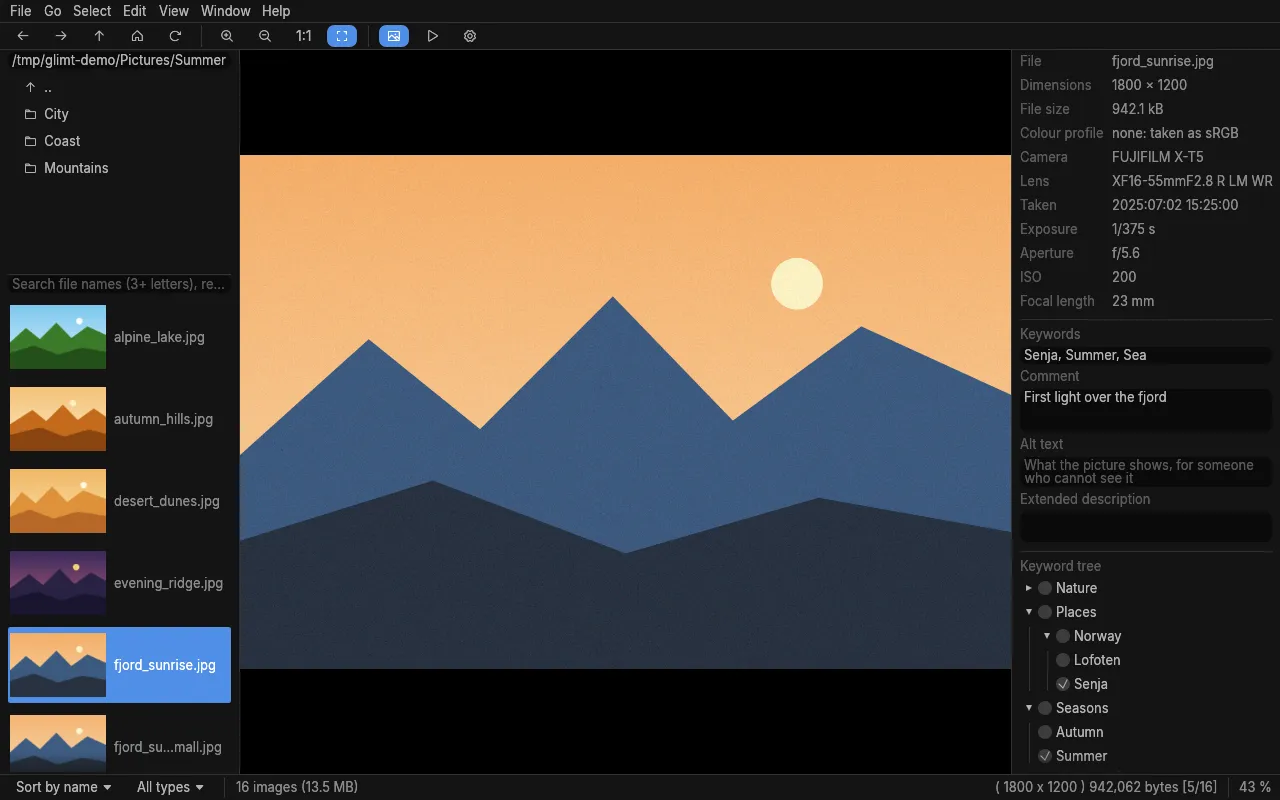
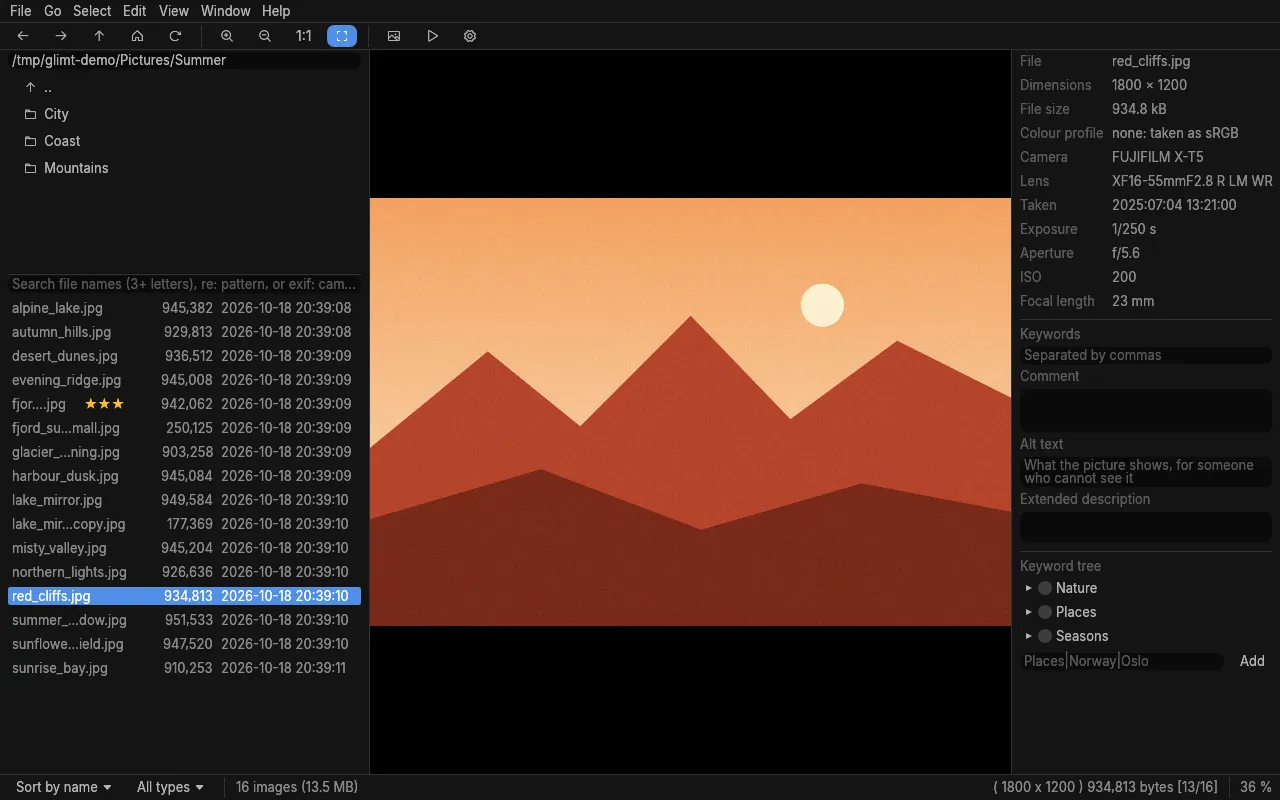
Section titled “Keywords and comments”The EXIF panel (Ctrl+K) shows the keywords and comment of the image below its EXIF; Alt+K puts the cursor in the keywords, separated by commas. They are saved when you leave the field, to the sidecar photo.jpg.xmp that darktable and digiKam also read (as dc:subject and dc:description); keywords written into the image by other programs are shown too. With several files selected, a button adds the keywords to all of them. exif: searches find keywords and comments. Renaming, moving, copying and deleting in Glimt take the sidecar along. The keyword tree below them holds keywords in levels (type Places|Norway|Oslo and Add): a box is ticked when the image has that keyword, and a click sets it on the selected images, or the shown one, or takes it off; the path goes into the sidecar too, as lr:hierarchicalSubject, which darktable, digiKam and Lightroom read. Right-click a keyword to remove it from the tree, with the levels below it. Below the comment, Alt text and Extended description are IPTC's fields for accessibility (Iptc4xmpCore:AltTextAccessibility and ExtDescrAccessibility): what the picture shows, for someone who cannot see it. Screen readers and web pages read them; they are saved to the sidecar too, when edited.
Printing
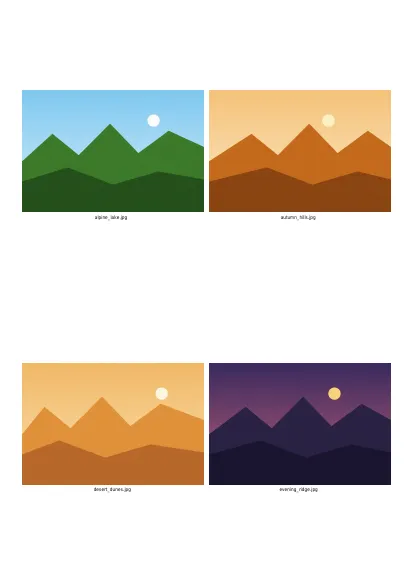
Section titled “Printing”File → Print (Ctrl+P) prints the selected images, or the shown one, one per page, as large as fits or at an Image size of 10 to 100 %, or several on a page as a contact sheet (Images per page: 2 to 20, in a grid). The dialog shows the first page as it will print. Paper: A4, Letter, A3, A5, Legal, or photo paper of 10 × 15 and 13 × 18 cm; Orientation: by the image (a wide one alone goes landscape), portrait or landscape; a margin of 0 to 50 mm. Fill each box cuts each image to its box instead of fitting it in. The text under each image comes from a template, as the full screen info's: %name% by default, or %Taken%, %Camera%, %keywords%, %comment% and the other fields. Text at the top and bottom of each page may hold %page% and %pages%. It goes to a printer through CUPS (lp), on both sides of the paper if the printer can, or into a PDF file. Every choice is remembered.
Plugins
Section titled “Plugins”Edit → Plugins runs a program on the selected files, or the shown one, and shows them again afterwards. A plugin is a desktop file in ~/.local/share/glimt/plugins (the menu opens that folder), for example Name=Rotate and Exec=mogrify -rotate 90 %f: %f runs it once for each file, %F once for all, and without either it runs once in the folder. A program next to the desktop file is found there. New plugins show after a restart. The files are given to the program directly, never through a shell; examples/plugins in Glimt's source has one that writes a description of each image as its comment and alt text, made by a model on this computer, and one that reads the alt text of the selected images aloud (speech-dispatcher), without a screen reader.
Formats
Section titled “Formats”Glimt reads JPEG, PNG, WebP, GIF, WebP and PNG (APNG) animations, TIFF (every page; grey TIFFs of floats from science stretched to show), BMP, ICO, QOI, PNM, Radiance HDR (tone-mapped), Zeiss LSM and .gel scans, and camera RAW files through their embedded preview; HEIC, AVIF and video through ffmpeg, JPEG XL and SVG, in the builds that have them, as the packages do. A video shows as a still frame from it; Enter (File → Play Video) plays it in the player set in Preferences, a command line such as mpv --fs, or else in the desktop's default player. A decoder plugin teaches Glimt a format it does not read itself, such as JPEG 2000, FITS, DICOM or OpenEXR: a desktop file in ~/.local/share/glimt/decoders with Extensions=jp2;j2k and an Exec command that writes the image (PNM, PNG …) to its standard output, %f being the file. Such files are then listed and shown as any other, with thumbnails. The command runs without a shell, for 30 seconds at most. examples/decoders in Glimt's source has decoders for JPEG 2000 (ffmpeg), FITS from telescopes (astropy), DICOM from medical and dental imaging, also compressed (pydicom), FITS and DICOM through ImageMagick, NIfTI brain scans, whole pathology slides (OpenSlide), microscope files (Bio-Formats), cryo-EM maps (MRC) and HDF5, NetCDF-4 and NeXus data, Photoshop, TGA and OpenEXR, and GIMP's own files (ImageMagick). New decoders are seen after a restart.
Sort manager
Section titled “Sort manager”Shift+S shows the sort manager on the right: a list of folders, added with Add This Folder or Add…. A click on a folder copies the selected files, or the shown one, there, or moves them with Move chosen; × takes the folder off the list. Handy for sorting a card's photos into albums.
Pan view
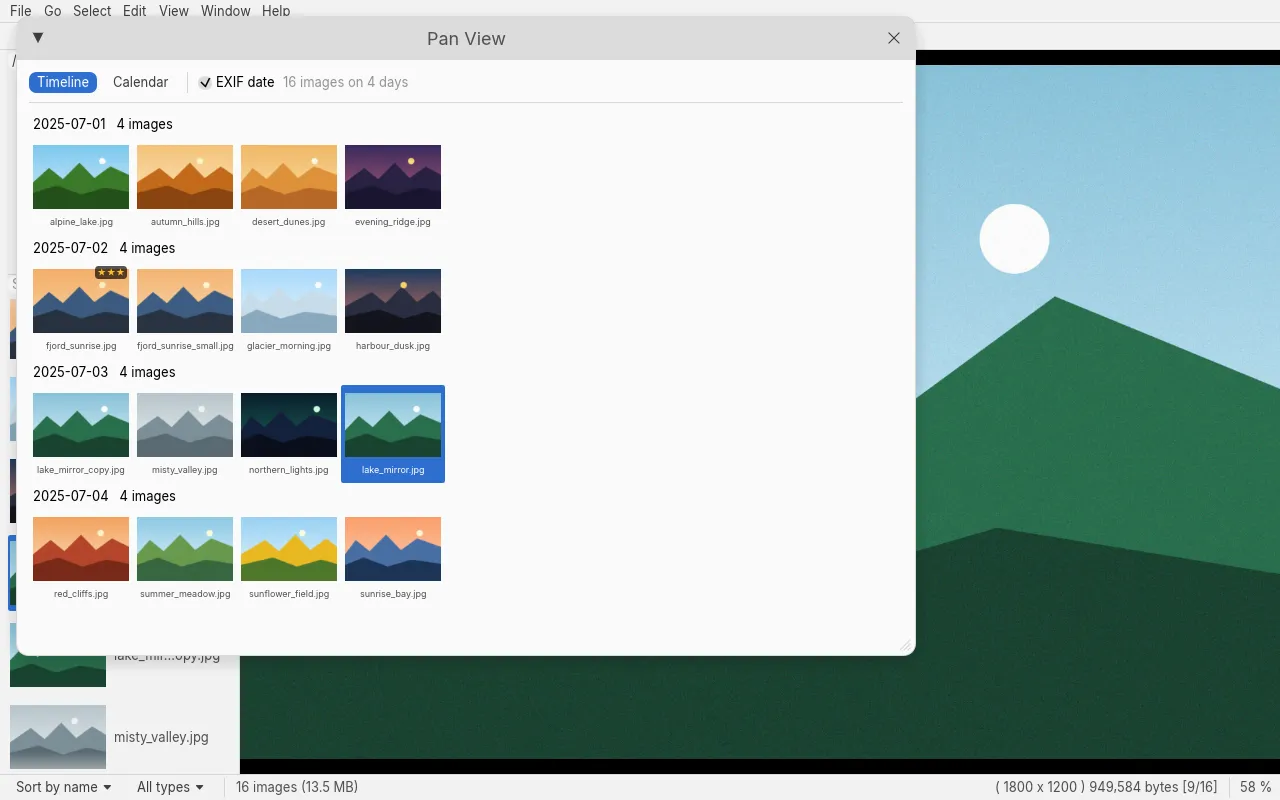
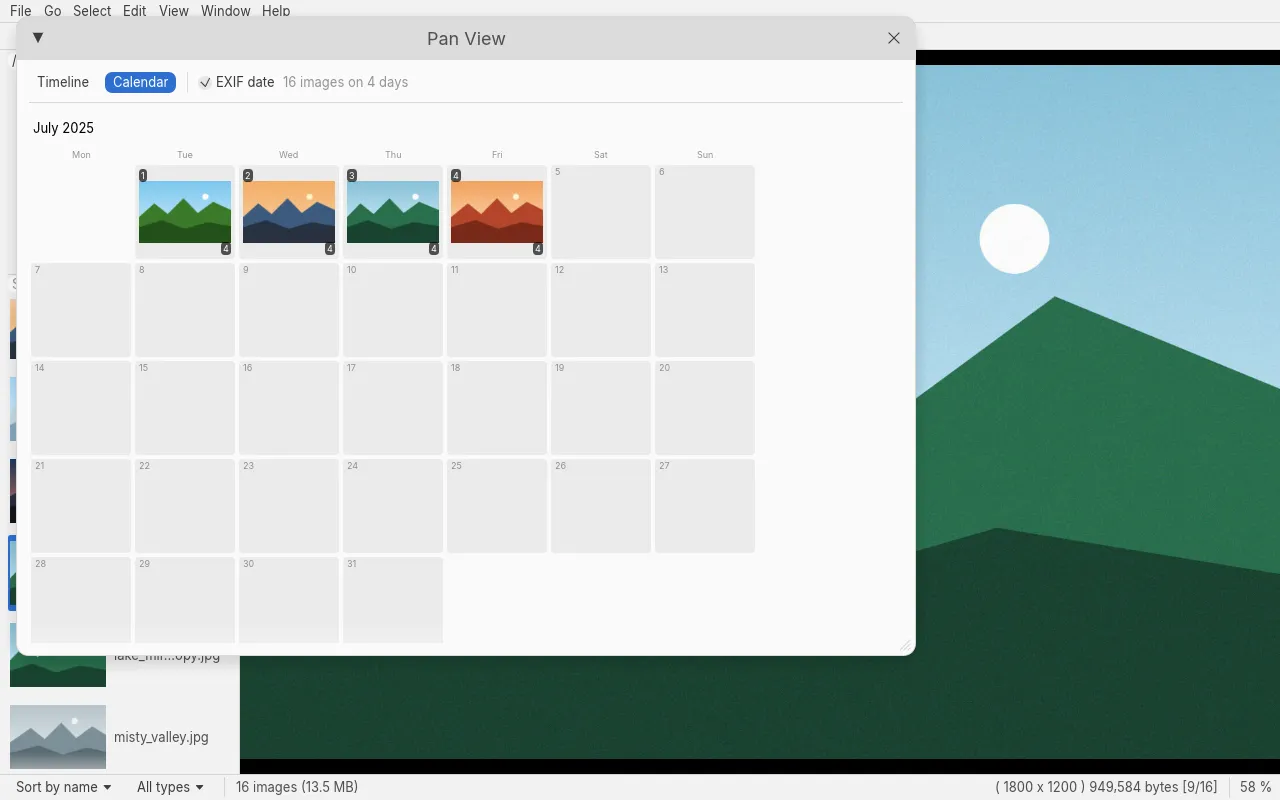
Section titled “Pan view”Ctrl+J (View → Pan View) shows the images of the list as a timeline: thumbnails under a heading for each day, oldest first, by the file date or, with EXIF date ticked, the date the photo was taken; a large folder shows the days read so far while the rest is read. A click shows the image, a double click also closes the view, as Escape does. Calendar shows the months that have images, a week to a row, each day with its first image and how many it has; a click on a day shows it in the timeline. With Include Subfolders it covers the whole tree.
Collections
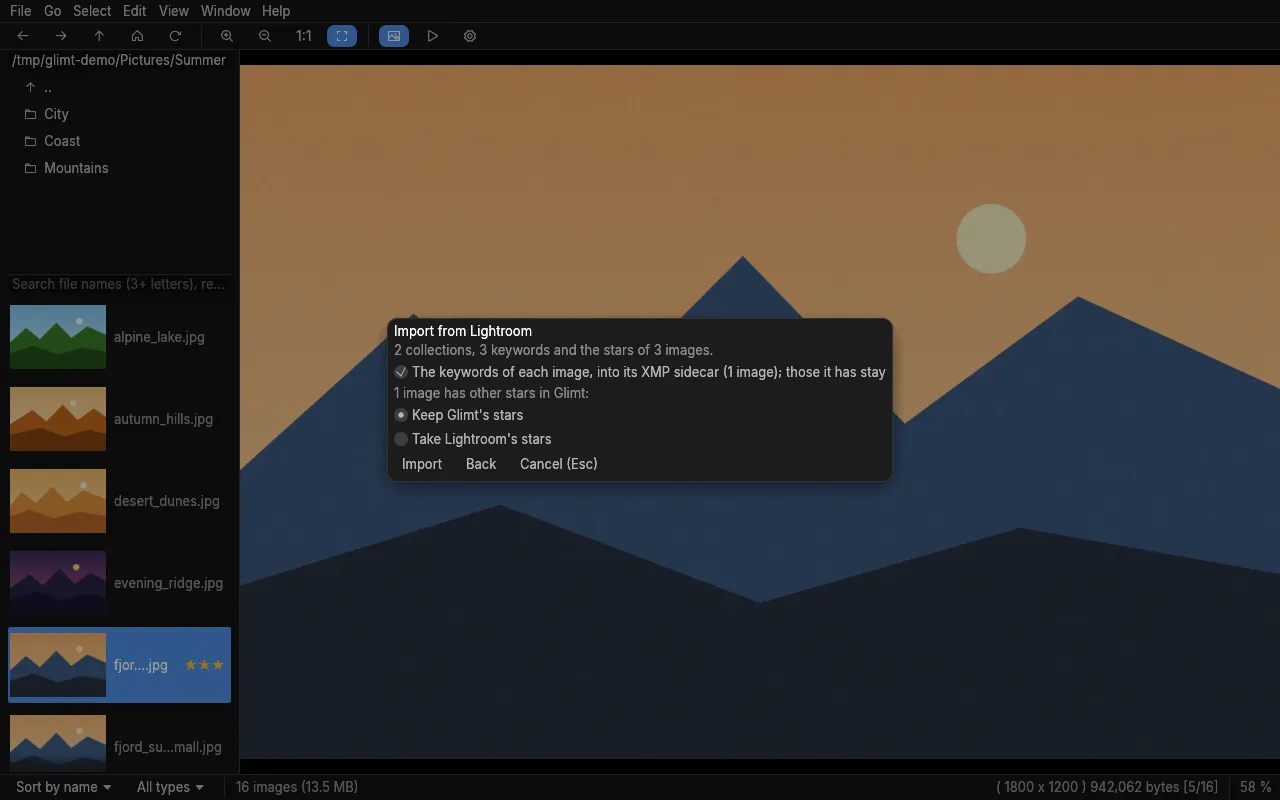
Section titled “Collections”A collection is a list of images from any folders. C makes a new one of the selected files (or the shown image), File → Add to Collection (also in the right-click menu) adds to one, and File → Collections or O opens one: the file list then shows its images, which browse, sort and play as a slideshow like a folder. Delete takes the shown or selected images out of the collection, leaving the files; drag them in the file list to another place (a line shows where they go), or Ctrl+Shift+↑ and ↓ move them one place earlier or later, Ctrl+Shift+Home and End to the start or end (File → Move in Collection), and the slideshow plays that order; renaming and moving in Glimt keep them in it. File → Rename Collection… and Move Collection to Trash act on the open collection (not on a plain list, which is yours); its images stay where they are. Each change is saved at once, as a .gqv file in ~/.local/share/glimt/collections; other .gqv collections open too (O, or a .gqv file on the command line). A plain list opens the same way: a .txt or .m3u file with one image on each line, relative to the list or absolute, # for comments, as a script or a music player writes it; glimt --slideshow show.txt plays it in its order. Glimt never writes a list: what changes in the window stays there. File → Import Lightroom Catalog… reads a Lightroom Classic catalog (.lrcat, with Lightroom closed) through the sqlite3 program: its collections become Glimt's (named with their sets, as Travel - Norway; one of the same name gets the images it lacks), its keywords go into the keyword tree and its stars into the marks. Lightroom keeps the folders where they were on its computer: say where each is now. Next then says what the import will do: the collections that are there already, and the images whose stars in Glimt differ, where you choose whose stars to keep. Stars go to the XMP sidecars too when they are set to. A box (kept for the next import) also writes each image's keywords into its XMP sidecar, with their place in the tree, beside the keywords it has: what Lightroom kept only in its catalog, unless it was set to write XMP. Smart collections, colour labels and flags are left out.
Backing up
Section titled “Backing up”Marks, stars, collections, the keyword tree and the settings are in Glimt's own files, not in the photos. File → Back Up Glimt's Data… copies them to a new folder glimt-backup-DATE wherever you choose, and glimt --back-up FOLDER does the same from a script or a timer, without a window; to restore, close Glimt and copy them back (see the README). Keywords, comments and alt text are in the XMP sidecars beside the photos, and go with a backup of the photo folders.
Checking images
Section titled “Checking images”File → Check Images… opens each image of the list in the background, as the viewer would, and lists those that cannot be: broken files, photos cut off in copying (a JPEG without its end, which shows grey at the bottom), and files that are no image under an image's name. They get an orange mark in the file list too, in the grid of thumbnails as well, until another folder is shown. A click on one shows it, Select Them selects them all, to move or delete; Stop ends a long check. A folder of 100,000 photos takes some minutes.
Finding duplicates
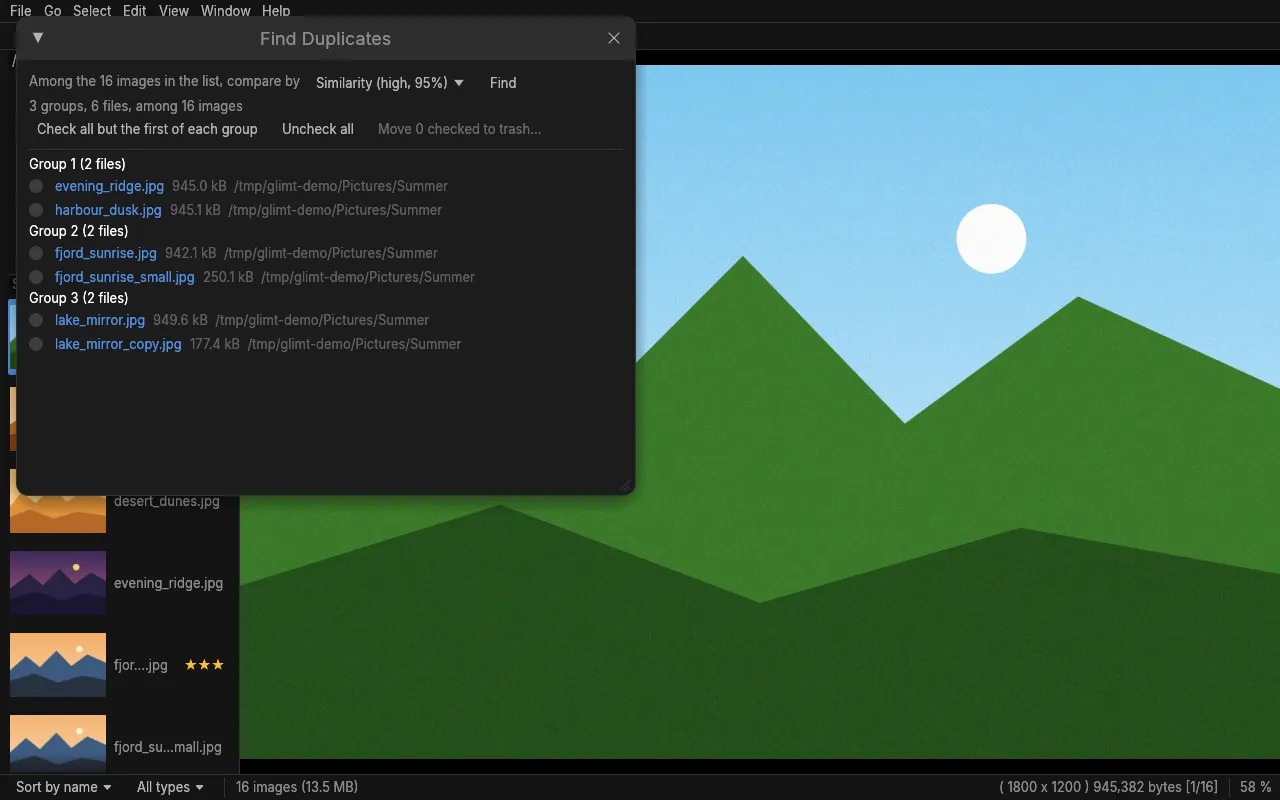
Section titled “Finding duplicates”D (File → Find Duplicates) opens a window that compares the images in the list: by checksum (identical files; only files of the same size are read), name, size, dimensions, or how alike they look (95, 90 or 85%, from the thumbnails). Turn on Include Subfolders first to search a whole tree. The groups found are listed; click a name to show it, check the ones to remove (or check all but the first of each group) and move them to the trash.
Themes
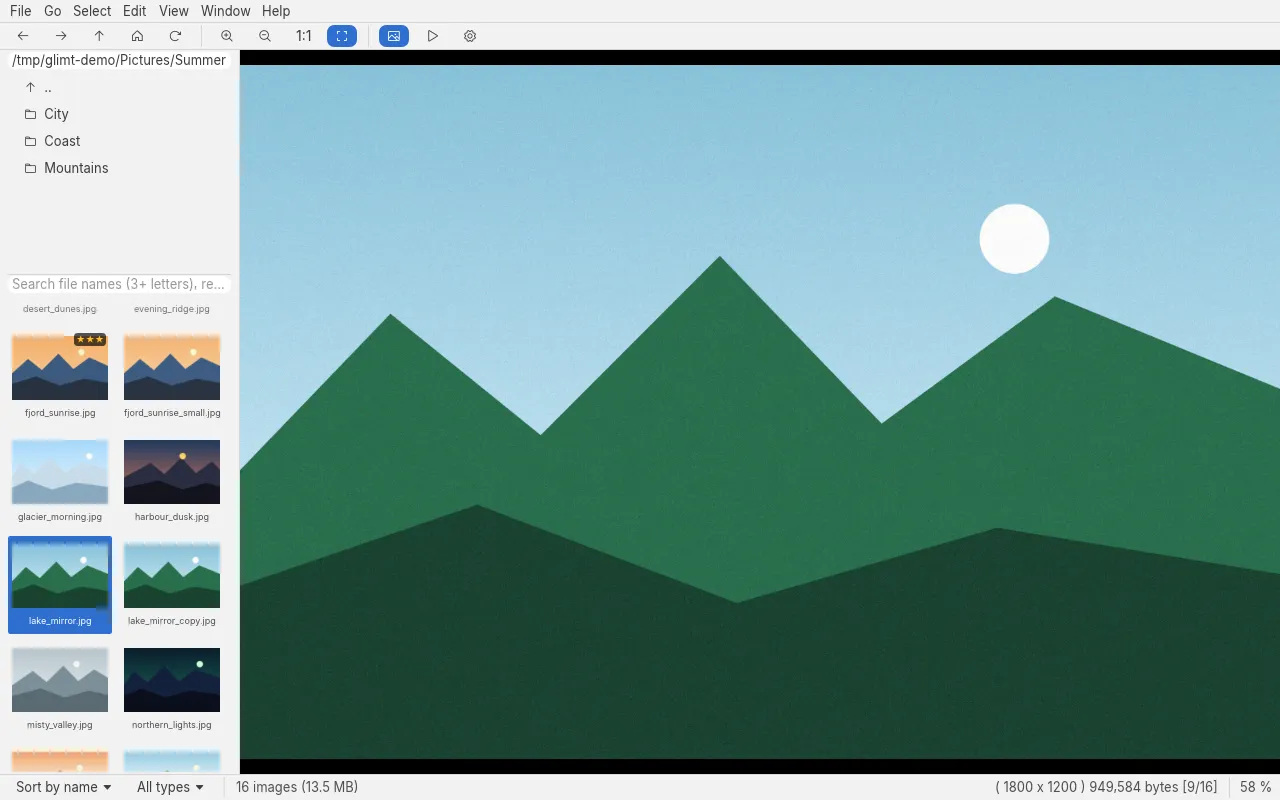
Section titled “Themes”View → Theme, or Theme at the top of Edit → Preferences, changes the look: Dark (the default), Light, Desktop (light or dark and the accent colour as the desktop), Nord, and for low vision High Contrast (white on black) and Contrast (black on white), both with larger text. Themes are small text files: Save as Theme… writes the look shown as one to edit, Open Themes Folder shows where they go (~/.config/glimt/themes), and Get More Themes… opens the collection on GitHub. Without an accent colour of its own, a theme takes the desktop's. When the desktop asks for high contrast (GNOME's and KDE's accessibility settings), Glimt shows High Contrast whatever theme is chosen; a box in Preferences turns that off. Preferences also sets the size of the menus, lists and text, from 50 to 300 %, and makes them larger still when GNOME's Large Text or text scaling is on. View → Filter shows the images and thumbnails in greyscale, inverted or with more contrast, and Shift+G goes to the next filter; the files stay as they are.
Projector
Section titled “Projector”Window → Projector opens a second window with only the image, for another screen or a projector, while you browse in this one: it follows the shown image, the slideshow and, when zoomed, shows the same part of the image. Drag it to the other screen and press F or double-click it for full screen there (Wayland lets no program choose the screen); Esc leaves full screen, and the arrow keys and the slideshow keys work in it too. A yellow ring shows on it where the pointer is over the image here, to point things out; Window → Show the Pointer on the Projector turns it off.
Layouts
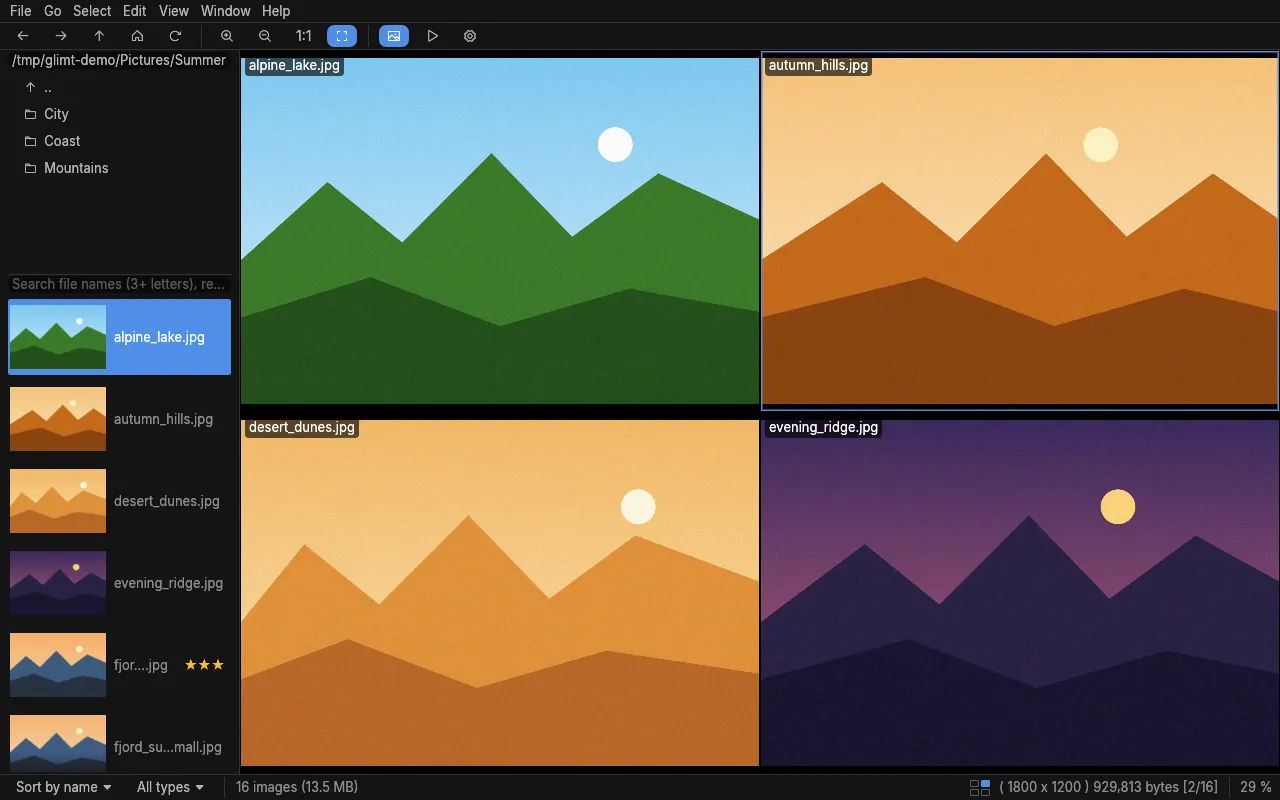
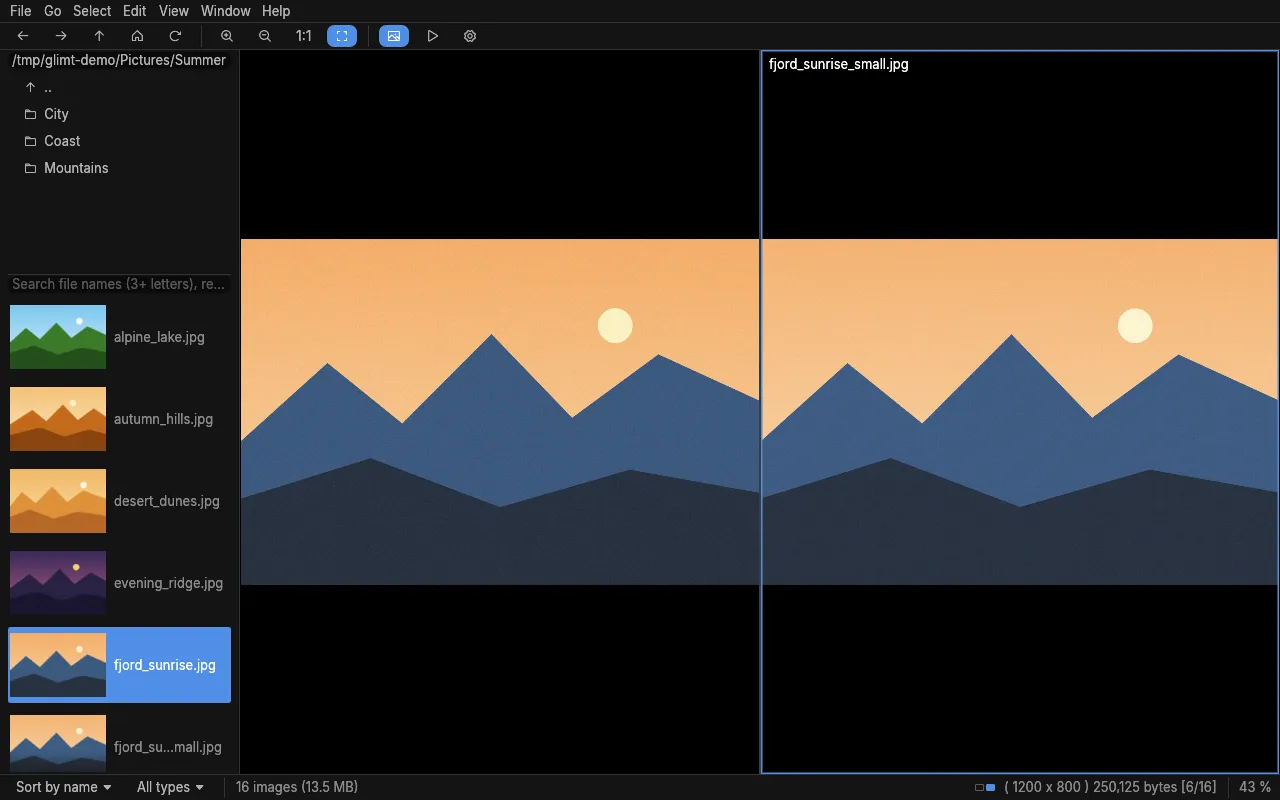
Section titled “Layouts”View → Layout shows several images at once: two side by side, two above each other, or four (2 × 2); L changes to the next, U to two above each other and Y back to one. The first pane is the shown image; the others show the images that follow it in the list, so with random order (R) they are random too. Zoom and moving a zoomed image apply to every pane, with the mouse wheel and dragging over any of them, and a click on a pane or Alt+arrow makes the image there the shown one. The status bar tells about the pane under the pointer (outlined), else the first: its size, place and zoom, with a small map of the panes beside it that shows which. For each layout, the slideshow either changes all images together or one at a time, round the panes; choose in the same menu, as well as Show File Names, in every pane or none. With full screen (F) the panes fill the screen, as two or four borderless pictures.
Panels
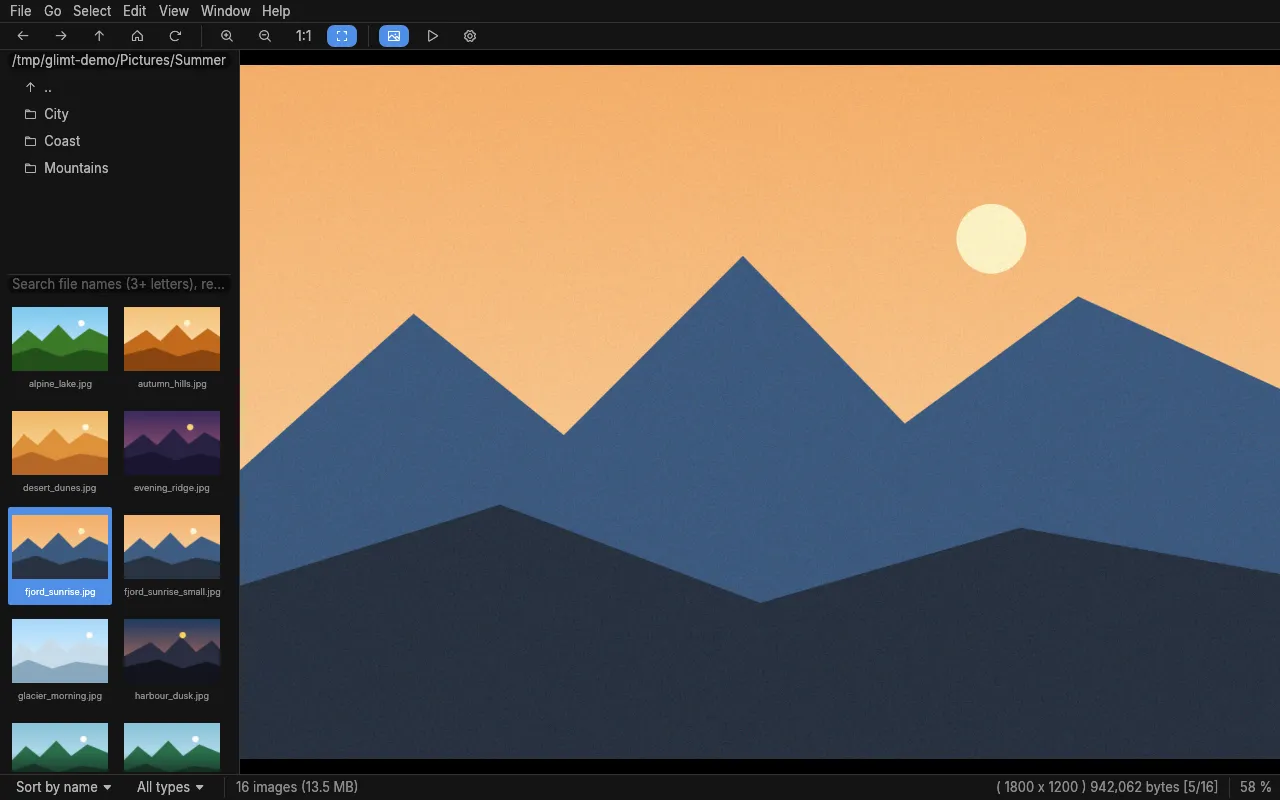
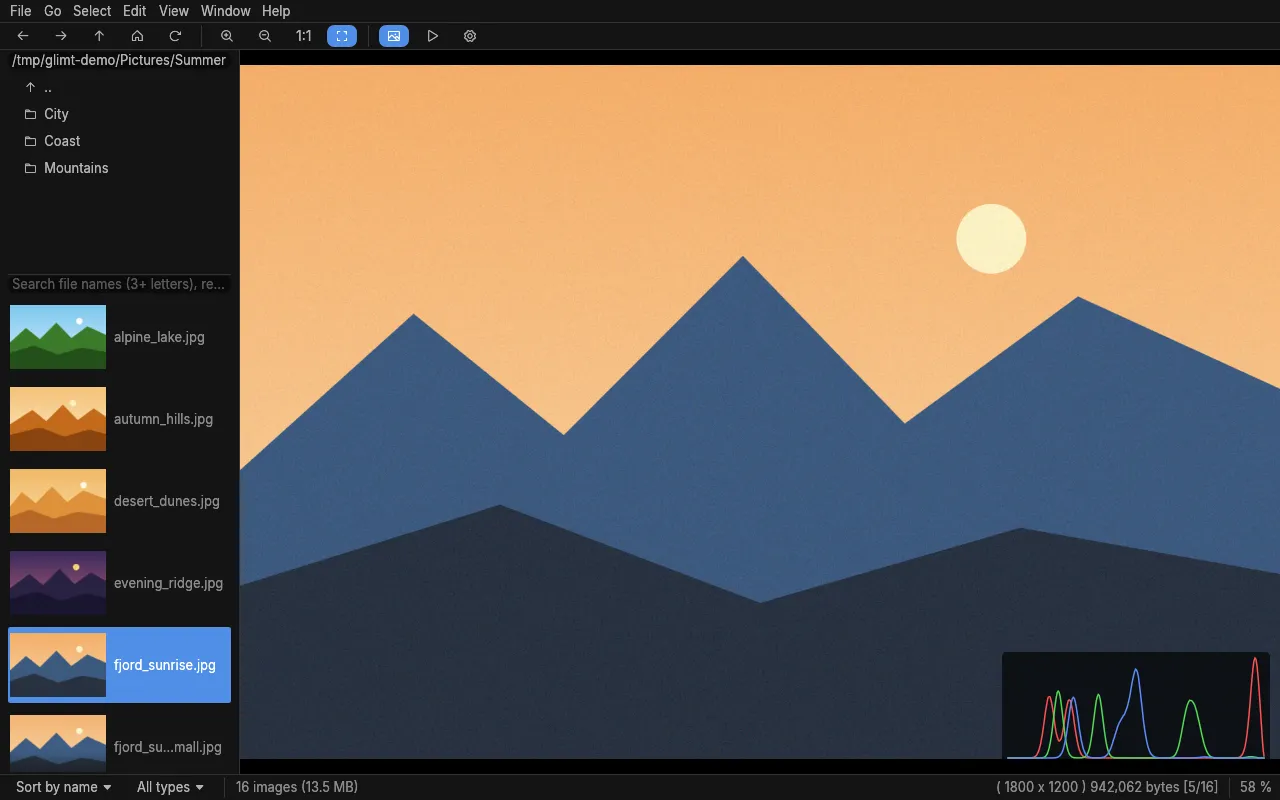
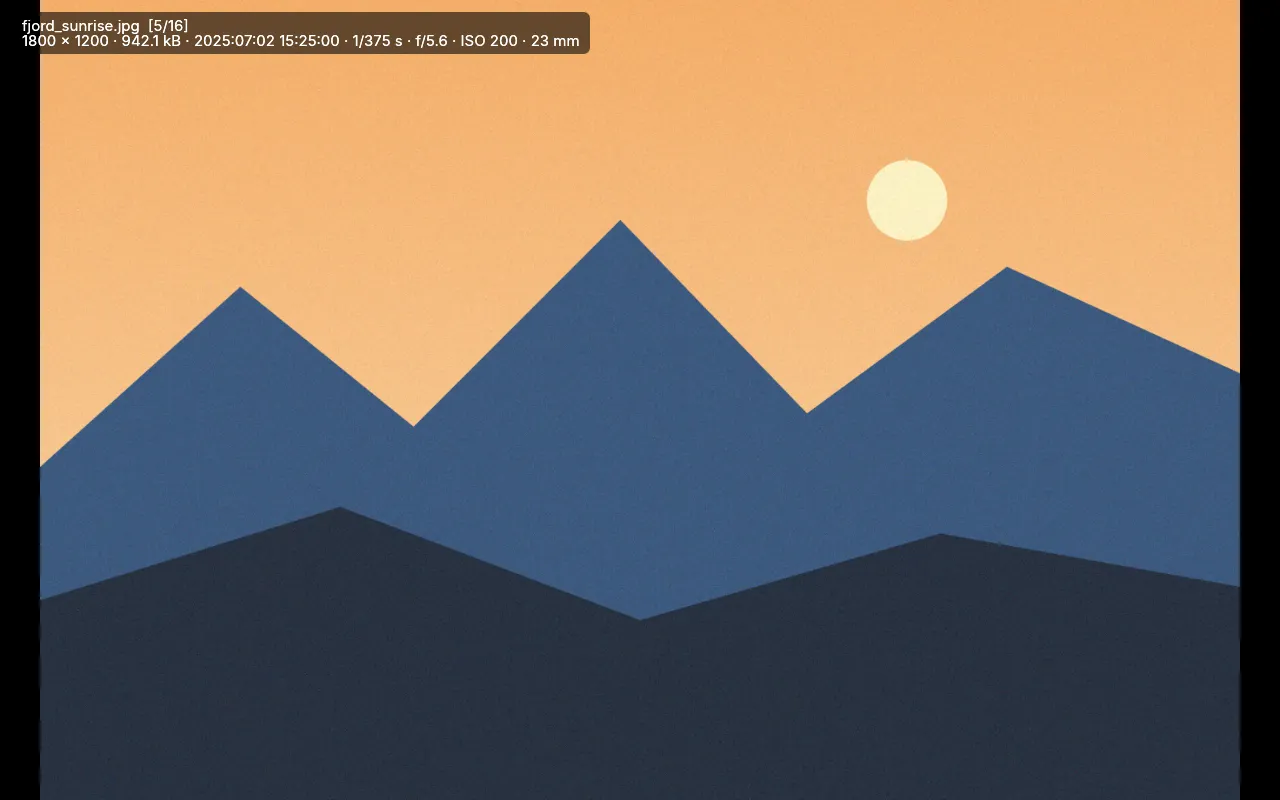
Section titled “Panels”T shows thumbnails (Small, Medium or Large in Preferences), Ctrl+I shows the file list as a grid of icons (↑ and ↓ move a row), Ctrl+T shows the folders as a tree, View → Include Subfolders lists the images of every folder below (File → Open Folder Recursive… opens a folder with it on), View → Show Hidden Files lists files and folders whose names start with a dot, K shows a histogram (RGB, brightness, off) and J makes it logarithmic, A stops and starts animations, E compares side by side: the next image, or the other of two selected files, at the same zoom and position, Ctrl+K the EXIF panel (its GPS position opens a map), Ctrl+E a window with every EXIF field, Ctrl+H hides the file list, F or F11 shows the image full screen, Esc leaves full screen. In full screen, I shows or hides the name, place and EXIF over the image; Preferences → Image info template says what it shows: %name%, %keywords%, %Camera% and the other EXIF panel labels, | between parts that are left out when empty, \ for a new line. Moving the pointer to the bottom shows a film strip of the images around the shown one; a click on one shows it. Thumbnails are read from ~/.cache/thumbnails, which the file manager shares; new ones are saved there only with Save new thumbnails on in Preferences. View also shows or hides the toolbar and the folder path, and Preferences the search field and each file's size and date in the list. A click opens a menu; with one open, pointing at another opens that, and it closes a moment after the pointer leaves. Full screen keeps the screen saver off, unless Preferences say otherwise.
Colour
Section titled “Colour”Photos with an ICC profile (Adobe RGB, Display P3 …) are shown in their own colours: converted to sRGB, or, for a calibrated or wide-gamut screen, straight to the screen profile chosen under View → Colour Management (also in Preferences). The desktop's screen profile, which GNOME and KDE keep in colord, goes before the chosen one when there is one; Use the desktop's screen profile off leaves it out. A photo without one whose EXIF says Adobe RGB, as from a camera set to it, is taken as Adobe RGB; other images without one as sRGB, or the profile chosen there for them (Adobe RGB, Display P3 or a file). Use the image's own profile off takes that one for every image. The EXIF panel (Ctrl+K) says which profile an image is shown from. The rendering intent there decides how colours the target cannot show are brought in; only profiles with tables for each intent (LUT profiles) tell them apart. With a screen profile every image is converted, a few milliseconds each in the background; files Glimt writes and the thumbnails it shares with other programs stay sRGB.
Screen readers
Section titled “Screen readers”With the accessibility feature (in the packages), a screen reader such as Orca reads the menus, buttons, lists and dialogs. The image itself is read as its alt text, its name and place in the list, its stars, keywords, comment and extended description, again each time you browse: the image area keeps the keyboard focus while nothing else has it, and the arrow keys and every shortcut still work there. Tab moves to the panels and menus, and a ring in the accent colour shows where the keyboard focus is; a click puts it away. Write the alt text yourself in the EXIF panel, or let a plugin write it (see Plugins).
Preferences
Section titled “Preferences”Edit → Preferences (Ctrl+O) has the settings: preloading, slideshow, thumbnails, the theme, what is shown, window and memory use, and how deleting works. Language: the interface in English or Norwegian bokmål, by the system's language (LANG) or as chosen; a text not translated shows in English, and this manual stays English. Under Keyboard shortcuts, Change gives an action the next key you press; Reset gives it its default keys back. Memory use at the top sets several at once: Low decodes one image at a time and preloads one on each side, Medium (the default) four and two, High eight and five; Details shows them, and other values are Custom. On slow storage such as SMB or NFS shares, Medium or High keep browsing quick, as the next images are read while you look; Low waits for each file. CPU use below it: Power saving makes thumbnails one at a time and runs searches, the EXIF index, Find Duplicates and pan view on two cores, kinder to a laptop battery; Balanced (the default) makes two thumbnails at once and runs the rest on every core; Full makes thumbnails on every core too. It takes effect at once.
Command line
Section titled “Command line”glimt [OPTIONS] [FILE_OR_FOLDER …] opens a file with the rest of its folder, a folder at its first image, or several folders as one list (glimt ~/Holiday ~/Family). The options before them start it a certain way: glimt --fullscreen --layout 2x2 --random --slideshow ~/Pictures shows four random images at a time on the whole screen, and glimt --slideshow show.txt plays a list in its order. glimt --remote COMMAND sends a command to the Glimt used last, glimt --remote-all to every one: next, prev, slideshow or open PATH from a script or a desktop shortcut. current, selection and select PATH … tell a script (or an AI assistant) what is shown and selected, or select files for you; they print each path followed by a NUL byte, and none of them changes a file. They reach only the Glimt windows of the same user on this computer, through a private socket, never over the network; for another computer, run the command there (ssh). Several can be told apart by name: start them with glimt --name left and glimt --name right, and glimt --name left --remote slideshow reaches only the left one. glimt --kiosk is for a picture screen: full screen with only the image, browsing and the slideshow but nothing that changes files, and no way out but glimt --remote quit (in a kiosk session such as cage or GNOME Kiosk, the desktop's keys are gone too); where remote control cannot work, without $XDG_RUNTIME_DIR, Ctrl+Q closes it. glimt --lock-settings, or a file /etc/glimt/lock-settings put there by the administrator, is for a shared computer: Preferences do not open, and what is changed in the menus lasts only until Glimt closes. glimt --check-config tells what is wrong in the settings file, line by line; Glimt also tells the first of it when it starts. man glimt says more, with examples. The options and commands are on the Command line page.
 Glimt
Glimt
A fast, memory-frugal image viewer for Linux, inspired by Geeqie. Version 0.38.4.
© 2026 Hans-Henry Jakobsen. Glimt is free and open source software under the MIT License.